Full radio control on iOS and Android — built with .NET MAUI. Operate your shack from anywhere: on the home Wi-Fi the app auto-detects the server and uses the lowest-latency LAN path; off-network, type your tunnel URL and the app switches to the auth-gated unified WebSocket. Same UI, same features, every platform.
💡 Key Features
Operate From Anywhere
Auto-detect picks the LAN multi-port path at home; manual hostname switches to the unified-WebSocket transport for remote access through Cloudflare Tunnel, Tailscale Funnel, nginx, or a port-forward. HMAC-SHA-256 secret stored in platform secure storage (Keychain on iOS, EncryptedSharedPreferences on Android).
Frequency & Mode Control
Large LCD-style display, segment-tap up / down buttons, manual keyboard entry, rotary VFO knob overlay. All nine modes the server accepts — LSB, USB, CW-L, CW-U, AM, FM, WFM, DIG-L, DIG-U — with per-band smart step sizes. Live S-meter with numeric corner readouts alongside the needle.
Multi-Rig Support
Switch between up to 4 OmniRig rigs with custom names. VFO A/B, Split, RIT, XIT all bidirectional with the radio.
Dual Audio Streams
Low-latency 12 kHz PCM (~150 ms) for live tuning + 192 kbps stereo HiFi MP3 for SSB / AM listening on cellular. Platform-native decode: MediaCodec + AudioTrack on Android, AudioToolbox + AVAudioEngine on iOS (a plain player cannot expose decoded PCM for a live stream, and the app needs it for the visualisation), MediaFoundation on Windows. Mutually exclusive with the 12 kHz path; auto-switches to 12 kHz on TX. HiFi now starts at your saved volume rather than full scale, stops cleanly when the server ends the stream instead of claiming to still be playing, and keeps feeding the recorder so a recording continues across the switch.
Listen To Your Own Receiver
With several SDRs on the server, the Audio button picks which receiver this phone hears — independently of every other client and of the station’s own audio. By default it follows the station. The button’s colour follows the server’s confirmation rather than your tap, so it can never show a receiver you are not actually hearing.
Antenna Switching
A picker plus a Follow / Manual button for the operating rig’s antenna, with the path confidence beside it. Antennas the current band does not cover are marked with the reason rather than hidden — a phone picker cannot grey one entry, so the caption carries the explanation and the selection is refused with it said out loud. The row appears only once the server says this rig is bound. Nothing is optimistic: the picker redraws from what the server says landed. Since 2026-08-27, a rig with a separate receive antenna gets a second picker for it.
Station Power
New 2026-09-08. A Power row lists the station’s switched loads with what each load is doing, switches one, or walks the whole station up or down in the server’s order — every press confirmed, the steps shown first, and Stop for anyone watching. The server refuses in words under a live carrier or behind storm-parked antennas. Absent on a station with no loads.
Station Speech
New 2026-10. When the server transcribes the station’s voice audio, the transcript — and its translation, if the server translates — appears in the app’s decoder display while speech has it (transcription on, no decoder running, the station in a voice mode), and the decoded text comes back when a decoder starts. Watching starts nothing at the station. (Winlink mail left the app in 2026-10: it is operated at the station.)
Twelve Digital Decoders
CW (40+ WPM), RTTY (auto-detect baud + shift, two demod algorithms with picker), PSK31 (9 BPSK / QPSK variants with AFC and FEC), FT8 and FT4 as separate mode buttons, decoded by the server’s own engine or relayed from WSJT-X (colour-coded by SNR either way), SSTV (20 modes with image canvas + waterfall), WEFAX (weather-fax decoder), NAVTEX (SITOR-B maritime safety), APRS (AX.25 packet radio), WSPR (propagation spots via WSJT-X, enriched with country, distance and bearing), JS8 (keyboard-to-keyboard traffic bridged from JS8Call), and Olivia / Contestia (a native MFSK decoder with format + family pickers, including an Auto option that detects the incoming format for you).
Band Skimmer Console
A live view of the server’s band skimmer — every signal of a mode across a whole band segment decoded at once, one lane per signal, with a callsign spot list you can tap to tune. Confirmed calls also chip the SDR waterfall. Its own SKIMMER section on a phone; on a tablet it is its own tab since 2026-08-24 (see below).
Slot Decoders Console
What every SDR slot’s own decoder is hearing, in one place: a lane per text-mode slot with its live transcript, and a table of FT8/FT4 records. Set a slot’s decoder from the app’s own Decode picker on the SDR view. Its own SLOT DECODERS section on a phone; on a tablet it is its own tab since 2026-08-24 (see below).
Plug-in Decoders
The server’s drop-in decoder plug-ins show up in the mode picker automatically, after the twelve built-in modes — the app renders a plug-in it has never seen from the manifest the server sends. Select one to view its decoded text or records in the decoder display, or hear an audio plug-in (such as FreeDV digital voice) on the stream. Plug-ins are installed and configured on the server; the app is a ready-to-go viewer.
Transmit Support
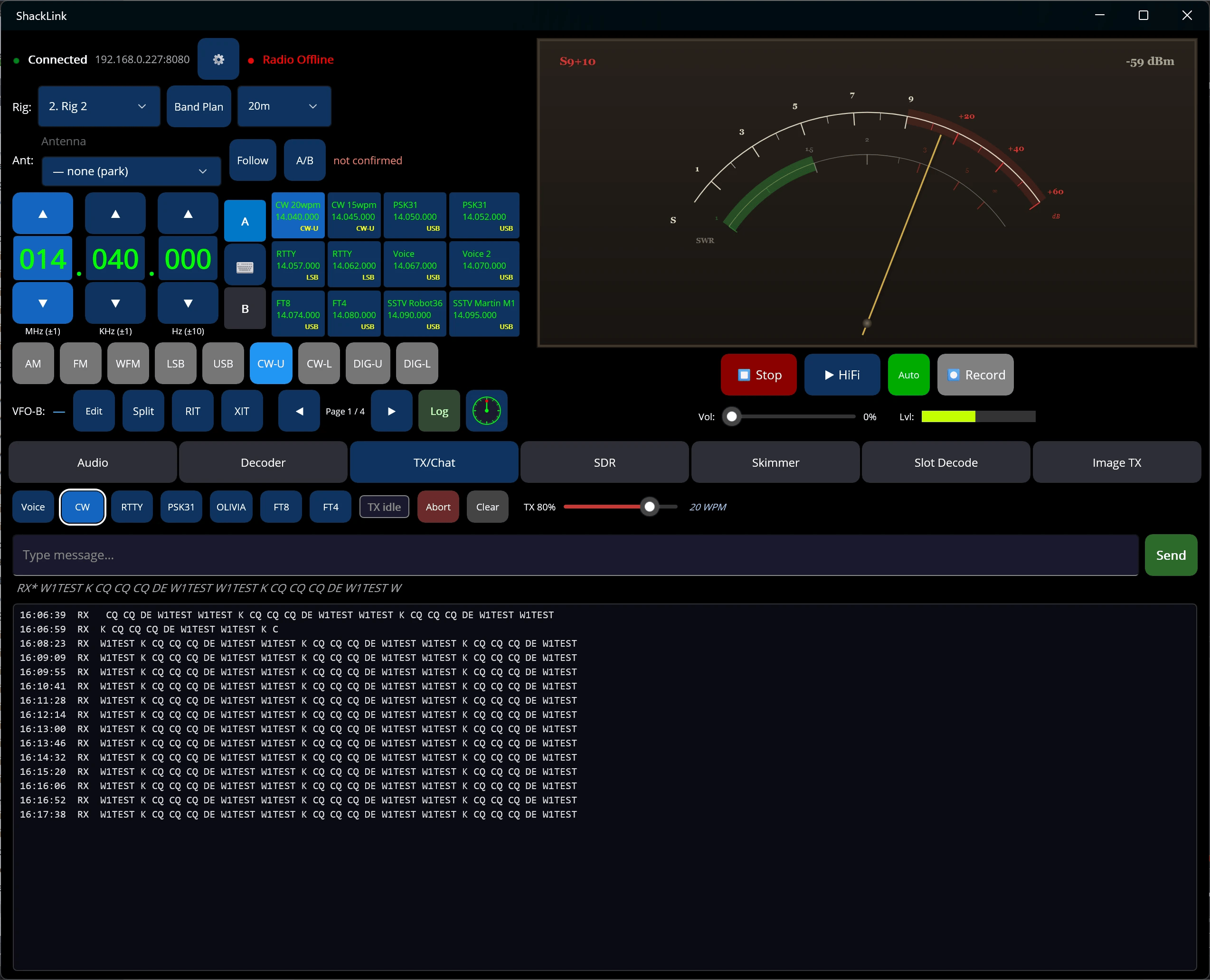
Chat-style timeline of incoming + outgoing. Voice (tap-to-toggle PTT), CW, RTTY, PSK31, Olivia, APRS. Server enforces a single-owner lock; rejected sends are visually greyed.
SDR Panadapter
Live scope + scrolling waterfall (SkiaSharp). Multi-SDR slot picker and Audio button when multiple devices are active. Tap-to-tune, drag-pan with comfort zone, RF / IF mode, FFT size picker (4K–32K). Same wire format as the desktop, server, and HA cards.
Fixed 2026-08-24: the panadapter had never worked at all on the remote transport. Every spectrum frame arriving over the WebSocket was sliced one byte too long, so it threw roughly thirty times a second and drew nothing; only the LAN path ever rendered. In the same pass, the local-oscillator broadcast was read from the wrong field and defaulted to zero, which snapped the frequency scale to 0 Hz until the next frame repaired it. Tap-to-tune’s sanity bounds moved from 1 MHz–1 GHz to 10 kHz–6 GHz: both old ends were dead zones, so every tap on long wave and medium wave silently did nothing on a receiver that covers them, as did 23 cm and up on a wideband stick. And the panadapter no longer renders at full cost while it is invisible or while the app is in the background — background audio is a supported feature here, the renderer has no such excuse, and iOS terminates an app that keeps drawing after it leaves the screen.
Audio Visualization
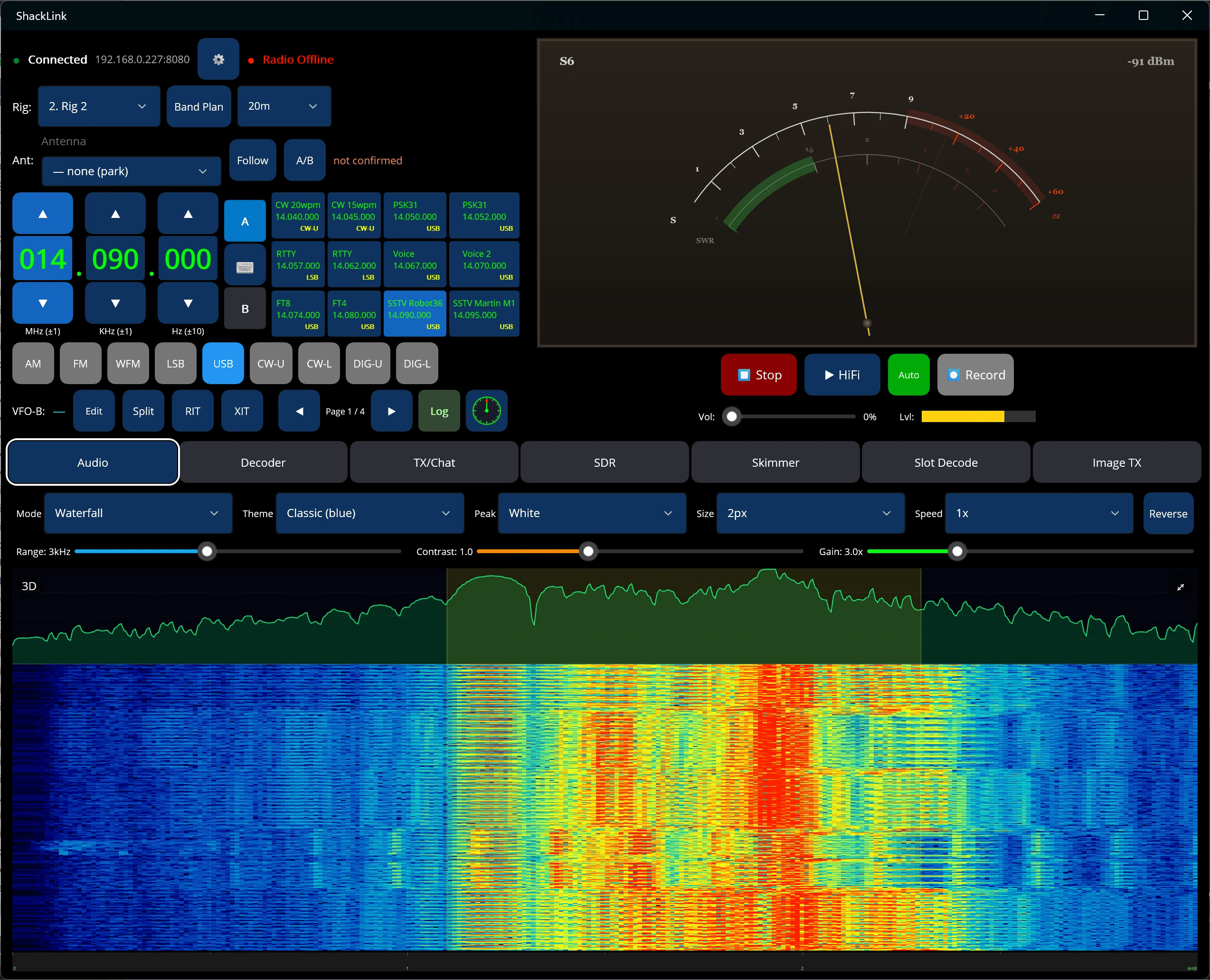
4 modes (Waterfall + spectrum overlay, Spectrum bars, Spectrum LED, Oscilloscope) with 6 themes, peak-hold colors, gain / contrast / range sliders. Same math as the desktop client — visual parity guaranteed.
Memory Bank
The station’s 48 memory channels, synchronised with the server, paginated 12 at a time — tap to recall, long-press to save. Per-band navigation across HF / VHF / UHF amateur and broadcast allocations.
Two corrections in 2026-08-24, both verified on real hardware. The long-press did not merely fail on Android — it did the opposite: the gesture library it used never fires for finger touches on Android at all, so the fallback ran recall instead, and holding a tile to overwrite it wrote the stored frequency over the one you were holding it to save. And a memory record was placed by its position in the message rather than by the channel number it carries, so any record the server omitted or reordered shifted every record after it onto the wrong channel — a bank that looks plausible and is wrong.
Audio Recording
Save audio sessions with frequency / mode / timestamp filenames. On Android and iOS the finished WAV goes to the share sheet, exactly as the SSTV and WEFAX images already do — the recordings folder is inside the app sandbox, so the old “saved to…” alert printed a path no file manager on the device could open.
Rebuilt 2026-08-24, because it could lie in four different ways and all four reported “Recording Saved”. A recording could be silence (starting HiFi under a running recording stopped the stream it was fed from, so the file grew at zero bytes a second while the clock counted up — HiFi feeds the recorder now, and a watchdog stops and explains if no audio lands for eight seconds); a zero-length file (the length was written only by a clean stop, so a backgrounded process being killed — the ordinary end of an Android session — left a file every player reads as empty; the size fields are now rewritten in place every few seconds); a truncated file from a disk that filled mid-recording, with write errors swallowed (a write failure is fatal now, patches the header so the partial file still plays, and says so); or an unreachable file, as above.
Auto-Reconnect
Resumes streaming, decoder subscriptions, and TX state on network blips. Auth state recovered from secure storage so you don’t re-prompt every reconnect.
And since 2026-08-24 it can tell a quiet station from a dead one. Nothing used to notice a peer that stopped answering without closing: the read simply blocks, the socket reports a gone peer as healthy, and every send disappears into the kernel buffer — so after a suspend, a Wi-Fi roam or a server power-cut the app said Connected indefinitely and every tap silently did nothing. Three layers now, deliberately different mechanisms: TCP keepalives tuned to seconds rather than the two-hour default, a WebSocket ping/pong that aborts on a missing pong, and an app-level watchdog that probes after 12 seconds of silence and forces a rebuild after 20 with the probe unanswered. Silence alone never forces anything — a station with no rig, no decoder and no meter really can be quiet — so the watchdog acts only where a probe provably provokes a reply. Coming back to the foreground revalidates the link rather than trusting the flag.
Retries also became a policy rather than an accident. One transport used to retry forever (about seven connection attempts a minute holding the radio awake for as long as the server stayed down) and the other stopped after ten and never tried again whatever happened to the network afterwards. Both now share one budget, and it is cleared only by intent: you tapping Connect, a successful connect, a change of server, or the app returning to the foreground.

The SDR panadapter’s 3D waterfall — the live spectrum rendered as a rotatable, GPU-accelerated perspective terrain
📋 System Requirements
| Platform | Minimum Version | Notes |
|---|---|---|
| Android | Android 5.0 (API 21) | Phone and tablet. Background audio uses a foreground service; the notification permission is asked at the first audio start rather than on first launch, and declining it costs only background audio. |
| iOS | iOS 15.0 | iPhone and iPad. The iPad ran the phone layout until 2026-08-24: the orientation mask was hard-locked to portrait for every device, which made the whole tablet layout unreachable code on every iPad. It is idiom-aware now — all orientations on iPad, portrait on iPhone — and leaving the full-screen visualisation restores the device’s own default instead of re-locking portrait, which used to leave an Android tablet portrait-locked for the rest of the session. |
| Network (LAN) | Wi-Fi or VPN | App auto-detects servers via UDP broadcast on port 8081 (broadcast includes name=<hostname>). Discovered servers appear in a Picker dropdown as HOSTNAME (IP). Connects on TCP 8080/8081/8082/8085 (legacy multi-port path). |
| Network (Remote) | Wi-Fi, cellular, anywhere | Manually enter the server’s hostname or tunnel URL — app switches to the unified-WebSocket transport on port 8084 with HMAC auth. One port-forward / Cloudflare Tunnel / Tailscale Funnel covers everything. |
🎮 User Interface
Connection Section
- Server picker – A dropdown (Picker) that automatically lists all discovered ShackLink servers on the LAN as HOSTNAME (IP). Selecting a server fills the IP and port fields. When multiple servers are running, all appear simultaneously. Servers that stop broadcasting disappear after 12 seconds.
- IP / hostname – LAN IP (e.g.
192.168.1.100) for the legacy multi-port path, or a hostname / tunnel URL (e.g.shacklink.example.com) to switch to the unified-WebSocket transport for remote access. Auto-filled when you pick a server from the dropdown. - Port –
8080for the legacy LAN path (auto-set on UDP discovery),8084for the unified-WebSocket remote path (auto-set when you type a hostname). - Auth secret – For the unified-WebSocket path, the app prompts for the HMAC-SHA-256 hex secret from the server’s Station Settings → Security panel. Stored in platform secure storage (Keychain on iOS, EncryptedSharedPreferences on Android).
- Connect Button – Tap to establish or close connection
- Status Indicator – Shows Connected/Disconnected state
Two Transports, One Protocol
The app automatically picks one of two transports based on how it found the server:
- LAN auto-detect → legacy multi-port — server’s UDP broadcast (including
name=<hostname>) reached the device. Discovered servers appear in the server Picker dropdown as HOSTNAME (IP). App connects on TCP 8080/8081/8082/8085. Lowest-latency path; preserved indefinitely for home use. - Manual hostname → unified WebSocket — you typed an address that didn’t come from UDP discovery (typical for remote access through Cloudflare Tunnel, Tailscale Funnel, etc.). App opens a single
wss://host:8084/wswith HMAC auth.
Either way, the radio control protocol is identical — the app’s view models don’t know which transport is in effect.
Frequency Display
The frequency is displayed in a split format for easy reading:
- MHz – Megahertz (e.g., 14)
- KHz – Kilohertz (e.g., 074)
- Hz – Hertz (e.g., 000)
Each section has up/down arrow buttons for adjustment. The step size varies by mode.

Mode Selection
Tap any mode button to change the operating mode. The selected mode is highlighted. Corrected 2026-08-24: both layouts now offer all nine modes the server accepts — the same set the desktop client’s mode box has always had. They were five, so four of the modes the station could actually use had no button on the phone at all.
The phone lays them out 5 + 4; the tablet puts all nine on one row. Highlighting is an exact match per button, which is correct because the server broadcasts CW-L / CW-U and DIG-L / DIG-U as distinct tokens and never a bare CW or DIG.
Mode: <x> with a space. The server tries a strict pattern first, which cannot cross a space, so the line fell through to a hardcoded fallback list that has no WFM in it — and the pattern for FM does not match inside WFM either. The mode was dropped with no error, no echo and nothing in the log. It now sends MODE:<x>, the format the desktop has always used, which passes any token verbatim. Only the LAN transport was affected: the WebSocket path trimmed the space away and has no fallback list, so this was a mode that worked remotely and not on the LAN.
🌐 Band Selection
Pre-configured bands with frequency limits:
| Band | Frequency Range | Description |
|---|---|---|
| LW | 148.5 – 283.5 kHz | Long Wave broadcast |
| MW | 530 – 1700 kHz | Medium Wave (AM broadcast) |
| SW | 2.3 – 26.1 MHz | Short Wave broadcast |
| FM | 87.5 – 108 MHz | FM broadcast |
| VHF Air | 108 – 137 MHz | Aviation band |
| 2m Ham | 144 – 148 MHz | 2 meter amateur band |
| 70cm Ham | 420 – 450 MHz | 70 cm amateur band |
| HF LSB/USB | 1.8 – 30 MHz | HF amateur bands (SSB) |
| HF CW | 1.8 – 30 MHz | HF amateur bands (CW) |
The app remembers your last frequency in each band and restores it when you return.
💾 Memory Bank
- Save – Long-press an empty slot to store the current frequency and mode
- Recall – Tap any saved slot to jump the rig straight to that frequency and mode
- Capacity – 90 on-device slots, paginated 9 per page across 10 pages
- Labels – Name a slot so its button shows the station or net instead of the raw frequency
- Persistence – Held in platform secure storage on the device, synced with the server’s 48-slot memory bank

Step Sizes by Mode
| Mode | Step Size |
|---|---|
| AM | 10 kHz |
| FM | 100 kHz |
| SW | 5 kHz |
| MW | 10 kHz |
| LW | 1 kHz |
| LSB/USB | 1 kHz |
| CW | 100 Hz |
📈 SDR Panadapter & Waterfall
The SDR page draws a live scope and scrolling waterfall from the server’s panadapter stream with SkiaSharp — the same SDL1 spectrum feed the desktop, web, and Home Assistant clients consume, so the picture matches on every surface. On iOS and Android the waterfall renders on the GPU (an SKGLView surface).
- Multi-SDR slot picker – When the server has multiple SDR devices active, a Slot picker and Audio button appear above the waterfall. Select a slot to view its spectrum; the Audio button is blue when that slot is the listening source and red when it is not — tap to switch. The audio-active slot is also marked [A]. Hidden when only one device is active.
- Web receiver slots (new 2026-08) – A server slot can be a public web receiver on the internet — a KiwiSDR, a Web-888 or a SpyServer — instead of a radio attached to the server. It appears in the slot picker like any other and needs nothing from the app; the only difference is that a click retunes the remote receiver’s passband, and a web receiver’s channel can be far narrower than a local SDR’s span. Which receivers to use is chosen on the server, where the connection is held.
- Per-slot memory – Gain, floor, contrast, reference level, zoom, palette, and the 2D / 3D choice are remembered separately for each slot; switching slots snaps the frequency scale to that slot’s current tuning.
- Center mode – When enabled, panning shifts the SDR band (LO changes, rig marker stays centered). When disabled, panning moves the rig frequency marker.
- Tap – In center mode, re-centers the band on the tapped frequency. In non-center mode, tunes the rig. Commands are routed to the selected slot.
- Pinch-to-zoom – Zoom into the spectrum. Two-finger drag simultaneously pans the band.
- Fullscreen – Double-tap for fullscreen with larger fonts and labels.
- Long press – Sets the demod offset marker.
- 3D waterfall (terrain view) – Toggle the waterfall between the flat 2D view and a rotatable 3D perspective terrain. Drag to orbit the camera. GPU-accelerated via an
SKGLViewsurface, with palette, style, fog, and shading options. - Waterfall Ref (max-level) – A Ref slider sets the top of the waterfall color scale so strong signals reach the top of the palette instead of being clipped below full scale.
- A straight dB trace (changed 2026-10) – Gain and Contrast now colour only the waterfall, as on the server. The spectrum trace is a plain dB plot, so 10 dB always looks like 10 dB and strong signals are not flattened against the top; the floor control still moves it.


Auto-Identify
Auto-Identify labels each detected signal on the SDR display with a small colour-coded chip over its carrier. Tap a chip for a detail card carrying the top candidate modes with confidence, plus measured frequency, bandwidth and SNR — the tap also tunes to that signal. On platforms that have a pointer (Windows, Mac Catalyst, or a mouse / stylus on Android) hovering a chip pops the same card. The scan runs on the server, so the app renders exactly the same chips as the desktop and web clients; a Signals toggle hides them.
RDS
RDS auto-activates whenever the SDR demodulator is in WFM — it is not a decode mode you select. It decodes the 57 kHz subcarrier for the station name (PS), programme identification (PI), RadioText, programme type, clock time, and traffic/network data.
The app surfaces it as an RDS strip that appears automatically as soon as RDS data arrives, showing the station name and RadioText alongside a programme-type badge and a green STEREO badge when the stereo pilot locks.
🔢 Digital Decoders
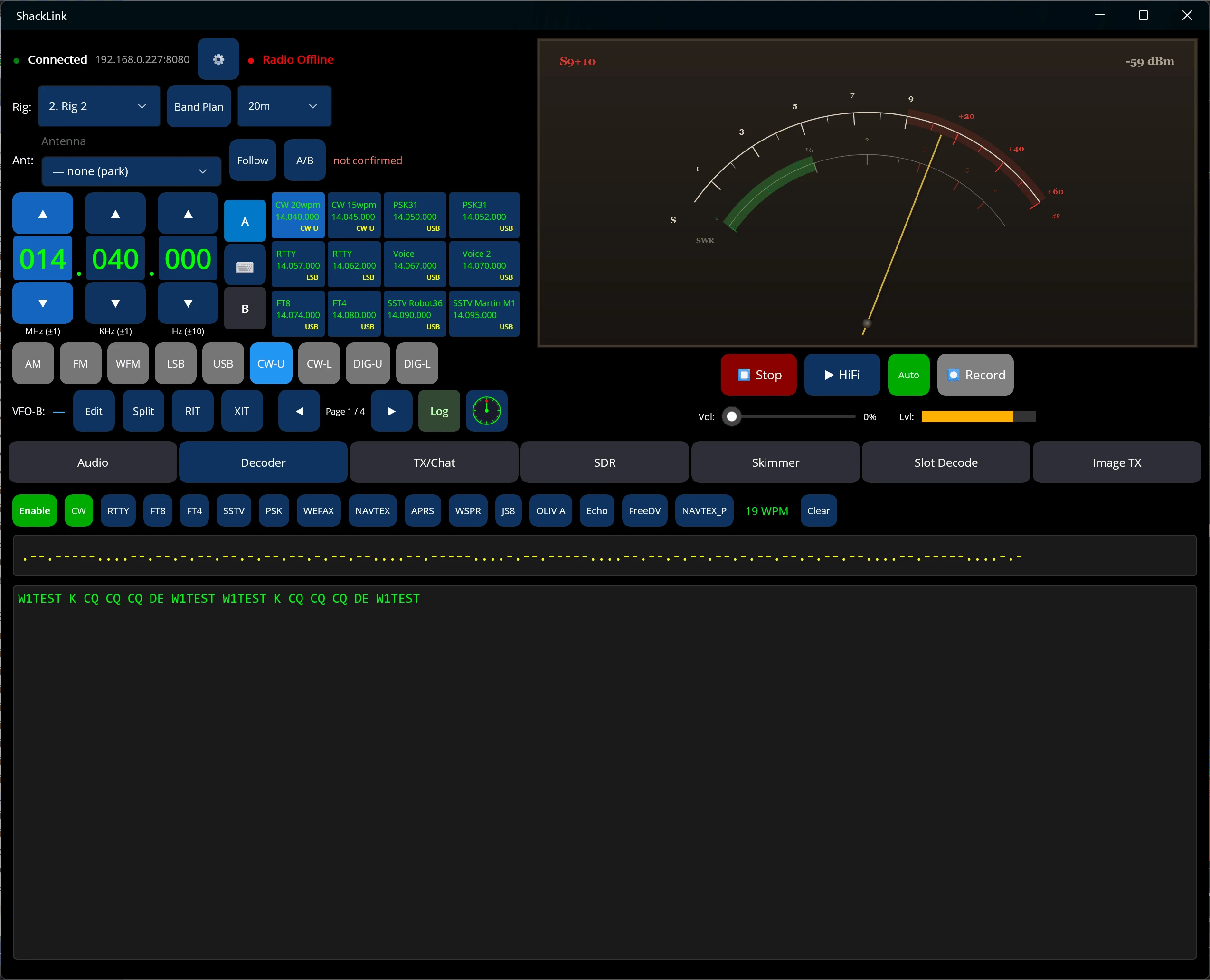
The app includes server-side digital mode decoding for all twelve modes — CW, RTTY, PSK31, FT8, FT4, SSTV, WEFAX, NAVTEX, APRS, WSPR, JS8, and Olivia / Contestia. Switching mode broadcasts to every connected client.

Decode Modes
- CW (Morse) – Real-time CW decoding up to 40 WPM
- RTTY – Baudot decoding with auto-detect for baud rate and shift
- PSK31 – Phase Shift Keying; 9 modes (BPSK-31/63/125, QPSK-L/U-31/63/125 with FEC), AFC, center frequency 200–3000 Hz, and squelch
- FT8 and FT4 – two mode buttons, one decode list. Decoded by the server’s own engine, or relayed from a WSJT-X instance on the server machine (UDP port 2237) — the server’s operator picks which, and they look the same here
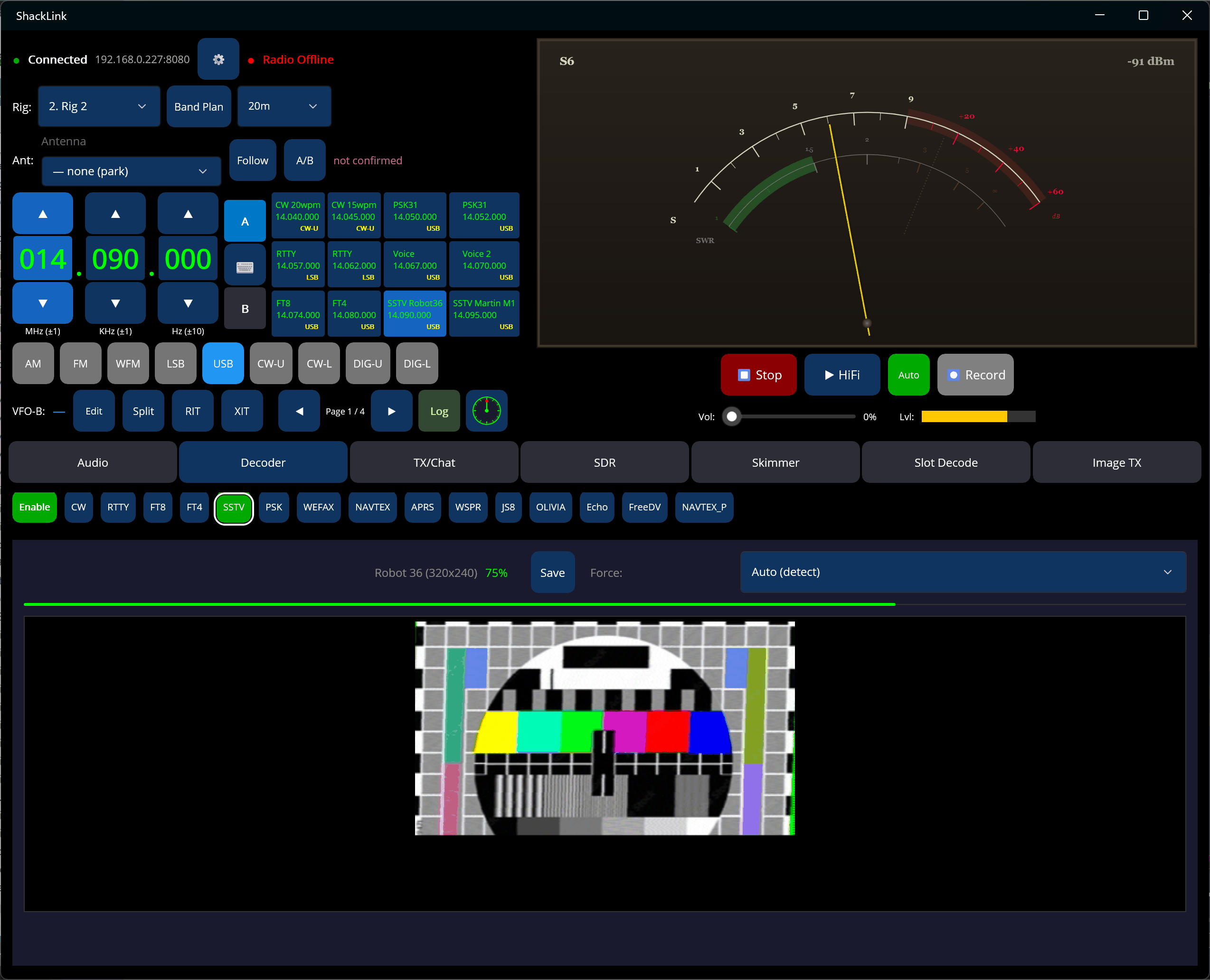
- SSTV – Slow Scan TV image reception with thumbnail and detail views
- WEFAX – Weather facsimile decoder (IOC 576/288 at 60/120 LPM); same image-+-progress UI as SSTV
- NAVTEX – Maritime safety message decoder (SITOR-B FEC, 100 baud, 170 Hz shift). Decoded characters stream to the text display.
- APRS – AX.25 1200 baud Bell 202 AFSK packet radio. Decoded packets display source callsign, position, and beacon text.
- WSPR – Weak-signal propagation spots relayed from a co-located WSJT-X running in WSPR mode (UDP 2237, shared with FT8). Each spot is enriched server-side with DXCC country plus distance and bearing from your grid square, so the app does no lookups. The last 100 spots replay when you subscribe.
- JS8 – Keyboard-to-keyboard JS8 traffic bridged from a running JS8Call instance over its TCP API (default 127.0.0.1:2442). JS8Call must have Settings → Reporting → TCP Server API enabled. Directed messages are DXCC-enriched (last 50 replayed on subscribe) and the ones addressed to your callsign are marked; raw band activity renders dim.
- Olivia / Contestia – A native MFSK decoder; no external program needed. Tone sets from 4 to 64 tones across 125–2000 Hz bandwidth, picked from the format and family pickers on the decoder row (8/250, 16/500 and 32/1000 are the common on-air presets) — or leave the picker on Auto and the decoder detects the incoming format itself (elects one in about 8–10 seconds; a “→ 16/500” readout next to the picker shows what it found). Contestia is a family setting inside this mode, not a separate mode.
🔢 Native vs bridged decoders
Native — ShackLink does the DSP itself, so nothing else has to be running: CW, RTTY, PSK31, SSTV, WEFAX, NAVTEX, APRS, Olivia / Contestia, and FT8 / FT4 when the server uses its own engine. Bridged — relayed from another program that must be running on the server machine: WSPR (WSJT-X) and JS8 (JS8Call), and FT8 / FT4 when the server is set to use WSJT-X.
Olivia’s Squelch is a sync-confidence threshold, not an audio level. The default (3) is junk-free: it will not print garbage when the signal drops. Setting it to 1 turns it off, which buys roughly 2 dB more sensitivity but prints junk on sync loss. 10 only decodes solid signals.
FT8 Color Coding
FT8 messages are color-coded by signal strength (SNR) for easy identification:
| SNR Range | Color | Signal Quality |
|---|---|---|
| 0 dB and above | Bright Green | Strong signal |
| -10 to -1 dB | White | Moderate signal |
| -15 to -11 dB | Orange | Weak signal |
| Below -15 dB | Red | Very weak signal |
SSTV Image Decoder
The SSTV decoder displays images transmitted over radio:
- Thumbnail view – Small preview in the decoder panel
- Detail view – Tap thumbnail for full-size image
- Progress display – Shows decode progress percentage
- Mode detection – Auto-detects mode or use forced mode
- Save images – Save decoded images to device
Supported modes (20 total): Robot 36 / 72 / 8BW / 24BW, Martin M1 / M2, Scottie S1 / S2 / DX, PD 90 / 120 / 160 / 180 / 240 / 290, Wraase SC2-120 / SC2-180, Pasokon P3 / P5 / P7
Skimmer — the server’s band skimmer, live
The app mirrors the server’s band skimmer: a CW-Skimmer-style wideband decoder that decodes every signal of a mode across a whole band segment at once, one lane per signal, with a live callsign spot list. It appears as its own SKIMMER section on a phone, and as a panel on the SDR tab on a tablet.
- Lanes — one per detected signal with its frequency, callsign, speed, SNR and country above the decoded text.
- Spots — tap one to tune the radio to it, in that spot’s own mode.
- Waterfall chips — confirmed calls appear as amber chips on the SDR waterfall.
- Speed units follow each lane’s own mode — WPM for CW, baud for RTTY / PSK / NAVTEX, bandwidth in Hz for Olivia — which matters in a Mixed skim.
The skimmer is server-owned: the server operator picks the slot, segment and modes and starts it; the app subscribes to whatever is running. (The server’s Wideband Scan and FT8 Wideband instruments are not mirrored to mobile — they are shown on the server and the desktop client only.)
Slot Decoders — every per-slot decoder at once
Each of the server’s SDR slots can run its own decoder on its own audio, independently of the main decoder. The app mirrors all of them: a lane per slot for the character and line modes (name, mode, listen frequency, running transcript) and a table of FT8/FT4 records. Its own SLOT DECODERS section on a phone, a panel on the SDR tab on a tablet.
Unlike the skimmer console, you can also change what a slot is decoding: the SDR view has a Decode picker whose mode list comes from the server, so it stays correct without an app update. A lane retires dimmed rather than vanishing when a decoder stops, and there is no tap-to-tune — a per-slot decode is keyed by its slot, not by an on-air frequency.
💡 Tip
Server-side decoding is more accurate than client-side because it processes the original audio without network jitter or latency issues.
🔊 Transmit & Image TX
ShackLink Mobile is a full transmit client for the server’s shared TX engine. Incoming and outgoing traffic share one chat-style timeline; the server enforces a single-owner TX lock, so a send refused because another operator holds the key is greyed out rather than silently dropped.
- Voice – Tap-to-toggle PTT (tap once to key, again to unkey) streams mic audio to the server’s token-authenticated voice uplink. A three-zone VU meter tracks your level while keyed.
- CW / RTTY / PSK31 – Type into the compose box and send; the server’s encoders key the rig and mirror the transmitted text back into the timeline.
- Olivia / Contestia – A mode button in the TX row; type and send like PSK31 or RTTY. The transmit settings track the decoder’s live Olivia format, family, and frequency, and the TX badge shows the family + format a Send would key up (e.g. “Olivia 16/500”).
- APRS – Compose and send AX.25 packets through the server’s APRS encoder.
- Image TX – Pick a photo and transmit it over the air; the staged image previews before you commit the send.



🎶 Audio Visualization
The app includes a high-performance spectrum analyzer and waterfall display for real-time audio visualization:


Features
- Spectrum Analyzer – Smooth curve display showing audio frequency content with semi-transparent fill
- Waterfall Display – Scrolling spectrogram with color-coded signal intensity
- Gain Control – Adjustable sensitivity (0.5x to 10x) for optimal display
- Collapsible Panel – Tap header to expand/collapse the visualization
- Mode-Aware Bandwidth – Display range adapts to radio mode (CW: 0-1kHz, SSB: 0-3kHz, FM: 0-6kHz)
- 3D Waterfall (terrain view) – The waterfall can switch to a rotatable 3D perspective terrain rendered on the GPU. Drag to orbit the camera; a button toggles 2D / 3D. Style, fog, and shading options included.
- Waterfall Palettes – 8 color schemes from the unified
WaterfallPalette, shared across the 2D and 3D waterfalls and matched to the other ShackLink surfaces. - Tap to place the decoder – Tap the waterfall to set the active decoder’s centre frequency. The marker then shows where the decoder actually landed, so if the value was out of range you see the clamp rather than a marker that quietly disagrees. Only PSK31, Olivia and NAVTEX have a centre frequency to move; in other modes the tap just parks the marker. (Touch has no pointer, so there is no hover preview — the tap is the whole gesture.)
- Decoder passband – A translucent rectangle showing the span the active decoder is listening across: Olivia’s exact bandwidth (16/500 = 500 Hz), PSK31’s symbol rate, RTTY’s live auto-detected mark/space rails, and the fixed tone rails for NAVTEX, APRS, SSTV, WEFAX and CW. It is the nominal occupied span — an alignment aid, not a measured bandwidth. The server resolves it and broadcasts it, so every client agrees. FT8, WSPR and JS8 show none: those are decoded by WSJT-X / JS8Call, not by ShackLink, so there is nothing honest to draw.
Color Scale
The waterfall uses a multi-color gradient to indicate signal strength:
| Color | Signal Strength |
|---|---|
| Dark Blue | Very weak / noise floor |
| Blue | Weak signals |
| Cyan | Moderate signals |
| Green | Good signals |
| Yellow | Strong signals |
| Orange | Very strong signals |
| Red | Peak signals |
| White | Maximum intensity |
Technical Details
- FFT Size – 512 samples for detailed frequency resolution
- Sample Rate – 12kHz audio stream from server
- Refresh Rate – 30 FPS for smooth animation
- Rendering – GPU-accelerated using SkiaSharp with direct bitmap manipulation
💡 Performance
The visualization uses SkiaSharp for GPU-accelerated rendering with direct pixel buffer access, providing smooth 30 FPS performance even on mobile devices.
📱 The Tablet Layout
Rebuilt through 2026-08-24, measured on a real 1180 × 820 tablet — iPad-landscape sized — as well as at 1024 × 768, 1280 × 800 and 1920 × 1080. A landscape tablet is not a big phone: it is short. Every row of chrome comes directly out of the waterfall, the decoded text and the chat timeline, and at iPad size the old arrangement left the spectrum pane about thirty device-independent pixels tall.
- Seven tabs. Audio · Decoder · TX/Chat · SDR · Skimmer · Slot Decode · Image TX. The two consoles used to be sections crammed under the SDR spectrum, and every shape of that was rejected: an iPad-size tab has no height to lend, so the lists were not visible and their toolbars became a third row of buttons over the waterfall. Each console now gets a full tab, with its own Subscribe / Clear / status header where a header row is normal.
- Compact rows that wrap rather than clip. The decoder’s Enable button, all twelve mode buttons, any plug-in decoders the server has registered, the PSK picker, WPM and Clear are one wrapping row. A fixed grid could never host the plug-ins — the server registers them at runtime, so their count is open-ended — and fourteen secondary toggles do not each deserve a full-size touch target on a tab where every pixel comes out of the decoded text.
- The meter gives up the width, not the controls. Below the wide threshold the dial, the VFO keys and the memory tiles keep their size and the S-meter absorbs the shortfall: it is the one element on the page that rescales cleanly, where the others each have a size below which they stop being readable or tappable. The first attempt shrank the memory tiles instead, which stopped them clipping and made the row taller — narrower tiles wrap the frequency onto more lines. Trading a horizontal overflow for a vertical one is not a fix.
- On a wide tablet the memory pager and Log ride the rig row, the audio transport splits across the two rows it aligns with, Record moves up to the short status row, and the S-meter fills its pane rather than sitting at an authored height with dead space under it.
- An expanded console can no longer eat the tab. The console bodies were a fixed height; on an iPad-size tab that overflowed the grid, the spectrum row went to zero — and a zero-height GPU pane keeps its stale full-size image painted over the whole tab, so the waterfall, the control rows and the button that would close the console all vanished under it with no way back. The tab is split between a spectrum floor and however many consoles are open, with the old fixed sizes as a ceiling, so large screens render exactly as before.


🔒 Safety, Privacy and Store Readiness
- A discovery beacon is no longer an instruction. The server’s LAN announcement is an unauthenticated UDP packet from anyone on the network, and the app used to treat one as a command: any datagram merely containing the product name would overwrite the saved server address, flip the saved transport mode — even while connected to a different server — and auto-connect. Under strict authentication the handshake then answered with an HMAC over a nonce of the stranger’s choosing. Now a beacon may auto-connect only to the station this install has committed to, or to anything at all when it has committed to none (a fresh install, where there is nothing yet to protect). A new address still appears in the picker, so choosing it deliberately is still one tap — and that tap is now the only route to a server this install was not configured for.
- Voice PTT asks for the microphone before it keys the transmitter. It used to key first and ask after, so the very first transmission radiated dead carrier under the operating system’s permission dialog — and every capture failure after that was a silent keyed-dead-air transmission with the interface reading “streaming mic audio”. There is now a permission check before the key, a watchdog that aborts if capture produces nothing within 1.5 seconds, and an abort after ten consecutive failed uplink writes. Backgrounding the app mid-transmission aborts a live voice transmission rather than leaving iOS streaming your microphone from behind the home screen; a double-tap before the server confirms the key is treated as a cancel rather than sending a second key.
- Audio behaves like an audio app. The app used to play straight over phone calls and never paused your music. It now takes and honours audio focus on Android — a permanent loss stops, a transient loss pauses, a duckable loss turns the volume down rather than killing a live receiver for a three-second navigation prompt — and observes interruptions, route changes and media-service resets on iOS, which used to leave the audio engine dead while the interface still said playing. Only what the system paused is resumed.
- The certificate bypass is gone. One download path accepted any TLS certificate; that callback was deleted. The privacy manifest and the network-usage descriptions the platforms require are complete, and one Play-restricted permission that no code ever used was removed.
🔌 Protocol Details
The mobile app communicates with the server using simple text commands over TCP:
Commands Sent by App
# Set frequency (Hz)
FREQ:14074000

# Set mode
MODE:USB

# Select rig
RIG:1
Messages Received from Server
# Frequency and mode update
RIG:1:FREQ:14074000;MODE:USB

# Radio status
RIG:1:RADIO:ONLINE:IC-7300
RIG:1:RADIO:OFFLINE

# Rig names
RIGS:Rig 1|Rig 2|Rig 3|Rig 4
🔧 Troubleshooting
Cannot Connect (LAN)
- Verify the server is running and radio is connected
- Check IP address is correct (server IP, not radio IP)
- Ensure your phone is on the same network as the server
- Check firewall allows ports 8080, 8081, 8082, 8084, 8085 (and UDP 8081 for auto-detect) — Station Settings → Server → Configure Firewall on the server creates the rules automatically
Cannot Connect (Remote)
- Verify your tunnel / port-forward is reachable: open
http://your-tunnel-host:8084in a browser. The web client should load. If not, the network path is broken before the app even tries. - The unified-WebSocket transport needs
/wswith WebSocket Upgrade headers passed through. Cloudflare Tunnel, Tailscale Funnel, and a default nginx + Let’s Encrypt setup all handle this. Some “lite” reverse proxies strip the upgrade headers — check the proxy’s docs. - If you connect briefly then disconnect: the secret is wrong. Open Station Settings → Security on the server, copy the secret, and paste it into the auth-secret prompt that appears when you re-enter a manual hostname.
Connection Drops
- Move closer to your Wi-Fi router
- Check for network interference
- Disable battery optimization for the app
- The app will automatically try to reconnect
Frequency Not Changing
- Ensure radio shows “ONLINE” status on server
- Check OmniRig is properly connected to the radio
- Verify frequency is within the radio’s range
- Check VFO is not locked on the radio
App Crashes on Startup
- Update to the latest version
- Clear app data and restart
- Reinstall the application
- Check device meets minimum requirements