Full radio control from any web browser, anywhere. Tune your rig, transmit CW / RTTY / PSK31 / Olivia / APRS and voice, send SSTV / WEFAX images, decode all twelve digital modes, watch the SDR panadapter, and listen in HiFi — all from a single browser tab. Tabbed work area (Decoder / TX / Image TX / Visualization / SDR / Skimmer / Slot Decoders / Map) keeps the radio control card always visible while you switch contexts. Serve it locally on your LAN, or expose port 8084 through a Cloudflare Tunnel and your shack travels with you.
💡 Key Features
Control From Anywhere
Single-port (8084) WebSocket carries everything — works through Cloudflare Tunnel, Tailscale Funnel, nginx, or a port-forward. Optional HMAC auth.
Frequency & Mode Control
Click / scroll / arrow-key tune any digit; full mode selection (USB, LSB, CW, AM, FM, DIG, RTTY); live S-meter with numeric corner readouts alongside the needle
Multi-Rig Support
Switch between up to 4 OmniRig rigs with custom names. VFO A/B, Split, RIT, XIT all bidirectional.
Dual Audio Paths
12 kHz PCM low-latency for live tuning + 192 kbps stereo HiFi MP3 for broadcast-quality listening — toggle per session.
Listen To Your Own Receiver
With several SDRs on the server, the [L] button beside a slot picks which receiver this browser hears — independently of every other client and of the station’s own audio. Press it again to go back to following the station, which is the default. Switching cuts the buffered audio so you hear the new receiver immediately rather than seconds of the old one.
Antenna Switching
Pick the antenna for the operating rig, and see whether the path the server would transmit into is confirmed. Full parity with the desktop: select, and toggle Follow / Manual. The row does not exist at all until the server says this rig is bound and the catalogue is non-empty — a station with no switcher gets no control, not a dead one. Nothing is optimistic: the combo redraws only from what the server says actually landed, which is also what makes a refusal visible. Since 2026-08-27, a rig with a separate receive antenna (an RX-only Beverage, say) gets a second picker for it.
Station Power
New 2026-09-08. A Power row lists the station’s switched loads with what each load is doing, switches one, or walks the whole station up or down in the server’s order — the steps shown first, every press confirmed, Stop for anyone watching. The server refuses in words under a live carrier or behind storm-parked antennas, and a pulse-type load it cannot see is not pressable from here. The row is absent on a station with no loads.
Full Duplex
New 2026-08-30. A Duplex RX row picks the one receiver that keeps listening while the station transmits, shows which transmitter the pairing is armed against, and arms it. A refusal the operator may accept offers its own Accept button, and the consent covers exactly what was shown. The server re-checks at every key-up. The row appears only on a station with a receiver that can do it.
Station Speech
New 2026-10. When the server transcribes the station’s voice audio, the transcript — and its translation, if the server translates — appears in the Decoder tab’s display while speech has it. Watching starts nothing at the station.
Twelve Digital Decoders
CW, RTTY (auto-detect baud/shift), PSK31 (9 BPSK/QPSK variants with AFC and FEC), FT8/FT4 (the server’s own decoder or WSJT-X), SSTV (20 modes across Robot/Martin/Scottie/PD/Wraase/Pasokon), WEFAX (weather facsimile with phasing-lock detector), NAVTEX (SITOR-B maritime safety), APRS (AX.25 packet radio), WSPR (propagation spots via WSJT-X, enriched with country, distance and bearing), JS8 (keyboard-to-keyboard traffic bridged from JS8Call), and Olivia / Contestia (a native MFSK decoder, no external program needed). Mode switch broadcasts to all clients.
Band Skimmer Console
A live view of the server’s band skimmer — every signal of a mode across a whole band segment decoded at once, one lane per signal, with a callsign spot list you can click to tune. Confirmed calls also chip the SDR waterfall. Server-owned: the browser subscribes to whatever skim is running.
Slot Decoders Console
Its own tab, showing what every SDR slot’s own decoder is hearing: a lane per text-mode slot with its live transcript, and a table of FT8/FT4 records. A lane retires dimmed rather than vanishing when a decoder stops. It is a monitor — no callsign extraction and no click-to-tune, because a per-slot decode is keyed by its slot rather than by an on-air frequency.
Per-Slot Decode Picker
Set any SDR slot’s own decoder straight from the browser, on the SDR tab — CW, RTTY, PSK31, NAVTEX, APRS, Olivia, FT8 or FT4. The mode list is shipped by the server rather than hard-coded in the page, so it stays correct without a page update, and a mode a slot cannot run comes back with the reason.
Plug-in Decoders
The server’s drop-in decoder plug-ins appear in the mode picker automatically, after the twelve built-in modes — the page renders a plug-in it has never seen from the manifest the server sends. Select one to view its decoded text or records, hear an audio plug-in (such as FreeDV digital voice) on the stream, and click-to-tune the ones that declare a centre frequency. Only plug-ins that can run on the console are offered; per-slot ones run on the server. Plug-ins are installed and configured on the server; the web client is a zero-install viewer.
Transmit Support
Server-driven transmit on two tabs. TX: compose and send CW, RTTY, PSK31, Olivia and APRS, plus a voice push-to-talk. Image TX: SSTV (19 sub-modes) and WEFAX — pick an image, preview, send, and watch the line counter advance. The single-owner lock prevents collisions, and the TX:CONFIG protocol keeps every TX setting in sync across all clients. Voice needs a secure context — the microphone is only available over HTTPS or from localhost, so on a plain-HTTP LAN address the PTT button explains itself and stays disabled. The text modes work anywhere.
SDR Panadapter
Live scope + scrolling waterfall from the server’s SDR — including a public web receiver (a KiwiSDR / Web-888 or SpyServer station on the internet) held by the server as an ordinary slot, where a click retunes the remote receiver’s passband. Multi-SDR slot selector when multiple devices are active. Click-to-tune, drag-pan, RF or IF (transverter) mode, FFT size 4K–32K. DX spot and broadcast station markers overlaid on the waterfall. Navigator overview with rig frequency marker shows zoom position in the full band. Three waterfall modes — 2D, a WebGL 3D terrain, and the Split that joins them — plus the same named palettes the desktop uses (see below).
Audio Recording & Visualization
Record to WAV / MP3; live spectrum + waterfall display with adjustable gain and, since 2026-10, its own palette choice
48 Memory Channels
Server-synced slots with labels — all clients see the same memories instantly. Right-click to save, click to recall.
Tabbed Work Area
Eight-tab work area below the always-visible radio control card: Decoder, TX, Image TX, Visualization, SDR, Skimmer, Slot Decoders, and Map. The active tab is persisted to localStorage so reload restores it. Since 2026-10 the top of the page is more compact, so the tabs start higher: the antenna sits on one line in the audio card, Duplex RX on another, and controls that share a line no longer stretch across it.
Touch & Mobile-Ready
Same UI works on phone, tablet, or desktop browser. No separate mobile build required.
HMAC-SHA-256 Auth
Optional challenge-response handshake gates the WebSocket. Wrong-secret clients are dropped before any state or audio is sent.
Auto-Reconnect
Resumes streaming and decoder subscriptions automatically when the network blips

The SDR panadapter — live scope and scrolling waterfall with click-to-tune, DX / broadcast-station markers, and a navigator overview, right in the browser
🚀 Accessing the Web Client
Built-in Server (Recommended)
The server includes a built-in unified HTTP + WebSocket server on port 8084. Simply open your browser to:
http://[SERVER_IP]:8084
Example: http://192.168.1.100:8084
The same port serves the web client (/), the HiFi MP3 stream (/hifi.mp3), and the WebSocket endpoint (/ws) used for control, audio, voice TX, and SDR. One port is all you need to expose.
🌐 Remote Access
The single-port architecture means port 8084 can be exposed via Cloudflare Tunnel, Tailscale Funnel, nginx + Let’s Encrypt, or a plain port-forward, and the entire client — including audio — works through the tunnel. The public URL becomes https://yourname.example.com (no port number) when terminated at TLS. Setup recipes ship with the server in docs/remote_access_recipes.md.
🔒 Authentication
For internet-facing deployments, enable Station Settings → Security on the server and paste the shared secret into the connect form’s Auth secret field (next to Server IP / Port). The browser handles the HMAC-SHA-256 challenge-response handshake automatically using crypto.subtle; the secret is stored in the browser’s localStorage for convenience between sessions.
🎮 Frequency Tuning
Mouse/Desktop
- Click any digit to select it (highlighted)
- Scroll mouse wheel over any digit to change it
- Arrow Up/Down keys change the selected digit
- Arrow Left/Right keys move selection between digits
Touch/Mobile
- Tap any digit to select it
- Tap arrows to increase/decrease selected digit
- Long-press arrow buttons for continuous tuning
🎧 Audio Streaming
Starting Audio
- Click the Start Audio button
- Browser may prompt for audio permission – click Allow
- Audio begins streaming from the server
⚠ Browser Autoplay Policy
Browsers require user interaction before playing audio. Click something on the page first.
🌈 Spectrum & Waterfall Display
The web client includes a real-time spectrum analyzer and waterfall display for visualizing audio:
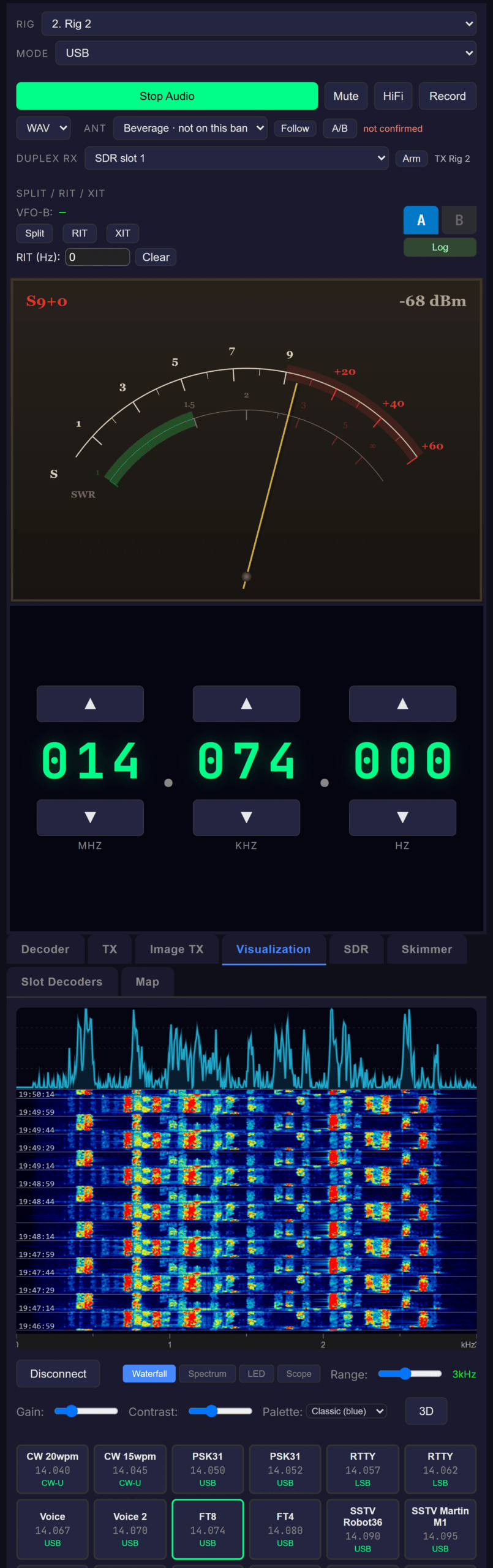
The Visualization tab — real-time spectrum curve over a scrolling waterfall of the decoded audio
Display Components
- Spectrum Analyzer – Real-time frequency curve at top showing current signal levels
- Waterfall – Scrolling spectrogram below showing signal history over time
Controls
- Show/Hide – Toggle button to show or hide the display
- Gain slider – Adjust brightness/sensitivity (0.5x to 5x)
- Palette (new 2026-10) – The waterfall’s colours, from the same palette list as the SDR tab, with its own choice remembered by the browser
Tuning the Decoder From the Waterfall
The audio waterfall is the primary way to place a decoder on a signal:
- Hover – A dim ghost cursor follows the pointer, reading out the frequency under it, and — for modes you can retune — a preview of the decoder’s passband centred on the cursor, so you can see how it would sit on the signal before you commit.
- Click to place – The decoder moves there. The marker then shows where the decoder actually landed, so if the value was out of range you see the clamp rather than a marker that quietly disagrees. Only PSK31, Olivia and NAVTEX have a centre frequency to move; in other modes the click just parks the marker.
- Decoder passband – A translucent rectangle showing the span the active decoder is listening across: Olivia’s exact bandwidth (16/500 = 500 Hz), PSK31’s symbol rate, RTTY’s live auto-detected mark/space rails, and the fixed tone rails for NAVTEX, APRS, SSTV, WEFAX and CW. It is the nominal occupied span — an alignment aid, not a measured bandwidth. The server resolves it and broadcasts it, so every client agrees.
- Nothing drawn for the bridged modes – FT8, WSPR and JS8 show no passband: those are decoded by WSJT-X / JS8Call, not by ShackLink, so there is nothing honest to draw.
Usage
- Start audio streaming first
- Click Show in the Waterfall section
- Adjust gain slider for optimal visibility
🎨 One set of palettes
Until 2026-10 this waterfall had a private colour ramp of its own that matched no other surface. It now uses the same named palettes as the SDR tab and the desktop and mobile apps, starting on Classic (blue), so the two web waterfalls can finally be made to look alike.
The SDR waterfall: three modes and thirteen palettes
New in 2026-08.
The SDR tab’s waterfall — the panadapter, not the audio display above — now carries the same three pane modes the desktop applications have, rendered in WebGL2 in your browser:
- 2D — the classic flat scroll.
- 3D — the whole pane becomes a terrain built from spectrum history.
- Split — terrain on the top half, the flat scroll underneath, joined on one shared instant: both show now at the seam, and history runs away from it in both directions.
The mode is a per-browser preference in localStorage; it costs no extra bandwidth and needs no server change, because the spectrum stream already reaches the page. Overlays follow it — the tuning needle, a draped marker trace, the five passband styles, the frequency graticule and the time axis are all drawn onto the terrain, with the graticule fed from the same ticks the flat scale strip draws so the two cannot disagree.
The waterfall also has thirteen named palettes now — Classic (blue), Classic (green), CoolWarm, Viridis, Plasma, Inferno, Grayscale, Neon (cyan), Signal (teal), Semaphore, Rainbow, and two light ones, Paper (light) and Blueprint (light) — the same set, by name, that the desktop uses. Before this the browser had one hardcoded gradient, and it was not even the same gradient as the desktop’s default, so a palette of a given name genuinely rendered different colours here. Nothing about the palette rides the wire: it is a per-client display preference, like gain and contrast.
Changed 2026-10: Display Gain and Contrast now colour only the waterfall, as on the server. The spectrum trace above it is a straight dB plot of the amplitude window, so 10 dB always looks like 10 dB and strong signals are no longer flattened against the top; the floor control still moves it.
🛠 One incidental fix worth knowing
The browser’s 2D waterfall never shifted on retune and never cleared on a span change, so it had been smearing across every pan. The server crops per client, so a pan arrives as a new centre frequency on the same span — which is a column shift. On a history surface that smear reads as genuine signal drift.
🔢 Digital Decoders
Decode Modes (Decoder tab)
The web client supports twelve decode modes, switchable via the grid of mode buttons (any plug-in decoders the server has follow them, and the grid wraps rather than pushing Enable off the edge). The selection is broadcast to every connected client.
- CW (Morse) – Real-time CW decoding up to 40 WPM
- RTTY – Baudot decoding with auto-detect for baud rate and shift
- PSK31 – Phase Shift Keying decoding; 9 modes (BPSK-31/63/125 and QPSK-L/U-31/63/125 with FEC), AFC, center frequency 200–3000 Hz, and squelch
- FT8 and FT4 – two mode buttons, one decoder family. Decoded by the server’s own engine, or relayed from an external WSJT-X instance (UDP port 2237) — the server operator picks which, and they look identical here. Each decode carries its own mode character, so FT8 and FT4 rows read correctly in the one list.
- SSTV – Slow Scan TV image reception with progressive rendering
- WEFAX – Weather facsimile decoder with phasing-lock detector, IOC 576/288 at 60/120 LPM. Same progressive image rendering and progress bar as SSTV.
- NAVTEX – Maritime safety message decoder (SITOR-B FEC, 100 baud, 170 Hz shift). Decoded characters stream to the text display.
- APRS – AX.25 1200 baud Bell 202 AFSK packet radio. Decoded packets display source callsign, position, and beacon text.
- WSPR – Weak-signal propagation spots relayed from a co-located WSJT-X running in WSPR mode (UDP 2237, shared with FT8). Each spot is enriched server-side with DXCC country plus distance and bearing from your grid square, so no client does lookups. The last 100 spots replay when you subscribe.
- JS8 – Keyboard-to-keyboard JS8 traffic bridged from a running JS8Call instance over its TCP API (default 127.0.0.1:2442). JS8Call must have Settings → Reporting → TCP Server API enabled. Shows directed messages (DXCC-enriched, with the last 50 replayed on subscribe), raw band activity, spots, and the station’s identity and speed.
- Olivia / Contestia – A native MFSK decoder; no external program needed. Tone sets from 4 to 64 tones across 125–2000 Hz bandwidth (8/250, 16/500 and 32/1000 are the common on-air presets), picked from the format and family selectors — or leave the format on Auto and the decoder detects the incoming format itself (elects one in about 8–10 seconds; the selector then shows what it found, e.g. “Auto (16/500)”). Contestia is a family setting inside this mode, not a separate mode.
🔢 Native vs bridged decoders
Native — ShackLink does the DSP itself, so nothing else has to be running: CW, RTTY, PSK31, SSTV, WEFAX, NAVTEX, APRS, Olivia / Contestia, and now FT8 / FT4. Bridged — relayed from another program that must be running on the server machine: WSPR (WSJT-X) and JS8 (JS8Call). FT8/FT4 can be run either way, chosen on the server.
Olivia’s Squelch is a sync-confidence threshold, not an audio level. The default (3) is junk-free: it will not print garbage when the signal drops. Setting it to 1 turns it off, which buys roughly 2 dB more sensitivity but prints junk on sync loss. 10 only decodes solid signals.
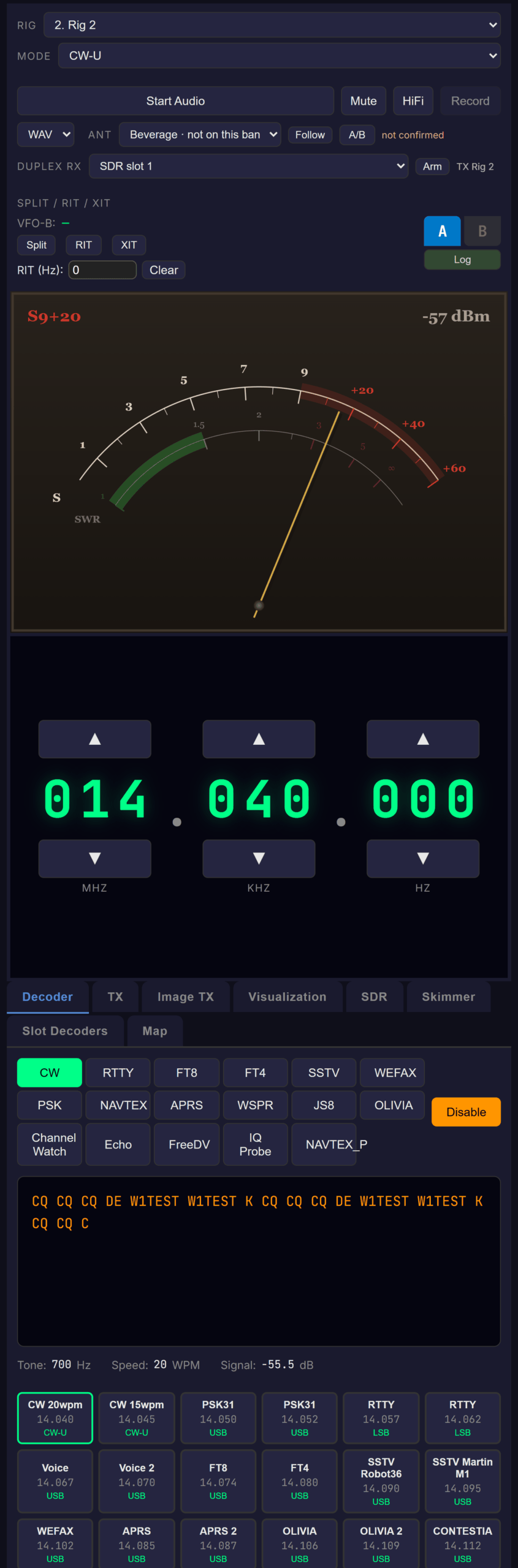
The Decoder tab — twelve-mode selector with live decoded text
Station Speech in the Decoder Tab
New 2026-10. The server can transcribe the voice on the station’s audio and translate it with a model running on the server PC. While the server says speech owns the console’s text display — transcription switched on, no decoder running, and the station in a voice mode — the Decoder tab’s display shows the transcript instead of decoded text, each translation under the line it translates, and switches back when a decoder starts. Only lines the server has accepted as real speech are sent. Opening the tab only subscribes: the speech engines are switched on and off at the server, never from the browser.
FT8 Color Coding
FT8 messages are color-coded by signal-to-noise ratio (SNR):
| SNR Range | Color | Signal Quality |
|---|---|---|
| 0 dB and above | Bright Green | Strong signal |
| -10 to -1 dB | White | Moderate signal |
| -15 to -11 dB | Orange | Weak signal |
| Below -15 dB | Red | Very weak signal |
💡 Server-Side Decoding
All decoding is performed on the server for maximum accuracy. The server processes the original audio without network-induced jitter or timing artifacts.
SSTV Image Decoder
The SSTV decoder displays images as they are received:
- Select SSTV from the decode mode buttons
- Images render progressively line by line
- Mode name and progress percentage are displayed
- Auto-detects mode from VIS code or use forced mode
Supported SSTV modes (20 total): Robot 36 / 72 / 8BW / 24BW, Martin M1 / M2, Scottie S1 / S2 / DX, PD 90 / 120 / 160 / 180 / 240 / 290, Wraase SC2-120 / SC2-180, Pasokon P3 / P5 / P7
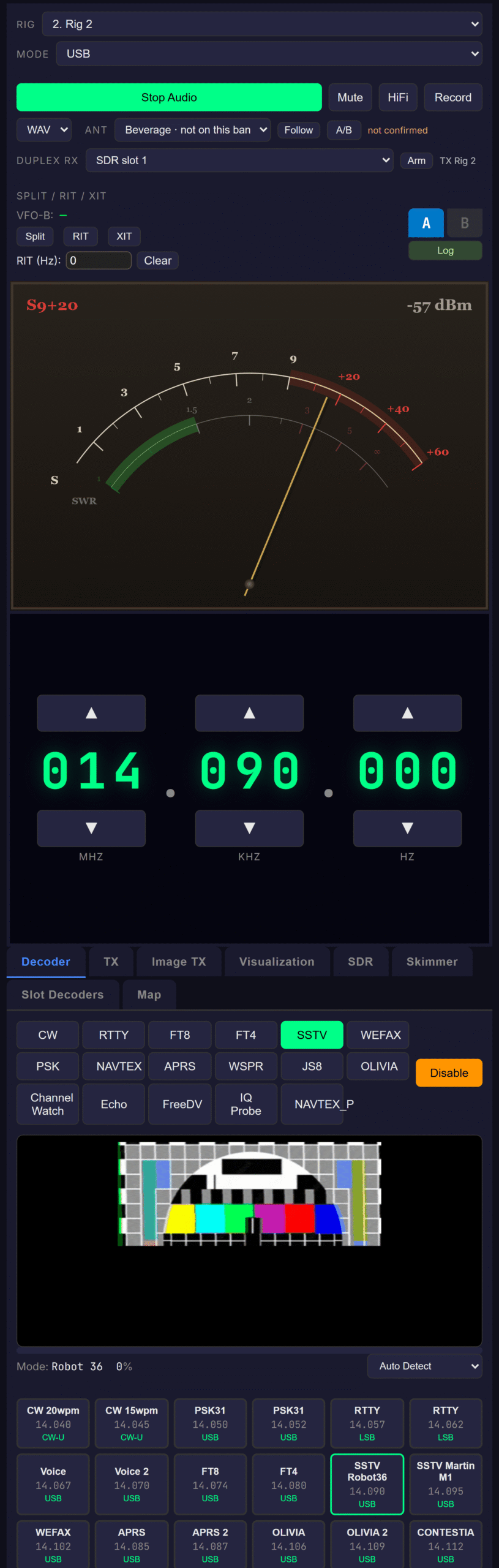
SSTV / WEFAX image reception — the picture renders progressively, line by line, with a mode + progress readout
Skimmer Tab — the server’s band skimmer, live
The Skimmer tab is a live view of the server’s band skimmer: a CW-Skimmer-style wideband decoder that decodes every signal of a mode across a whole band segment at once — one lane per signal — and pulls callsigns into a spot list.
- Lanes — one per detected signal, sorted by frequency, each showing its frequency, extracted callsign, speed, SNR and country above the decoded text. A lane appears once it has actually decoded something.
- Spots — confirmed callsigns with time, frequency, speed, SNR, count and country. Click one to tune the radio to it, in that spot’s own mode.
- Waterfall chips — confirmed calls also appear as amber chips on the SDR waterfall.
- Speed units follow each lane’s own mode — WPM for CW, baud for RTTY / PSK / NAVTEX, bandwidth in Hz for Olivia — which matters in a Mixed skim, where different lanes run different modes at once.
The skimmer is server-owned: the server operator picks the SDR slot, band segment and mode and starts it; the browser subscribes to whatever is running. When no skim is running, the tab simply has nothing to show. (The server’s Wideband Scan and FT8 Wideband instruments are not mirrored to the web client — they are shown on the server and the desktop client only.)
📈 Auto-Identify & RDS
Auto-Identify
Auto-Identify labels each detected signal on the SDR display with a small colour-coded chip over its carrier; hover for the top candidate modes with confidence, plus measured frequency, bandwidth and SNR. The scan runs on the server, so the browser renders exactly the same chips as the desktop client and the mobile app.
RDS
RDS auto-activates whenever the SDR demodulator is in WFM — it is not a decode mode you select. It decodes the 57 kHz subcarrier for the station name (PS), programme identification (PI), RadioText, programme type, clock time, and traffic/network data.
The web client surfaces it as an RDS strip that appears between the radio control card and the tabbed work area whenever RDS data is present, carrying the station name, RadioText, and a programme-type badge, plus indicator dots for the pilot PLL (P), block sync (S), and FM stereo (ST).
🎥 Audio Recording
Record the audio stream to WAV or MP3 files:
Recording Controls
- Format selector – Choose WAV or MP3 format
- Record button – Start/stop recording
- Duration display – Shows elapsed recording time
How to Record
- Start audio streaming first
- Select desired format (WAV or MP3)
- Click Record to begin
- Click Stop to end and download
💾 File Naming
Files are automatically named with frequency, mode, and timestamp: recording_14.074MHz_USB_2026-01-15T12-30-00.mp3
Format Comparison
| Format | File Size | Quality | Compatibility |
|---|---|---|---|
| WAV | Large (~1.4 MB/min) | Lossless | Universal |
| MP3 | Small (~120 KB/min at 128kbps) | Good (128kbps) | Universal |
📡 TX (CW / RTTY / PSK31 / Olivia / APRS + voice)
The TX tab is the text and voice transmitter. Text modes are server-synthesized — the browser sends what you typed and the server’s TX engine generates the audio — so they work from any browser on any connection.
- Pick a mode: CW, RTTY, PSK31, Olivia, APRS, or Voice
- Click Key to take the TX lock, type into the compose box, then Send (or Ctrl+Enter). Unkey when done; Abort bails out mid-transmission.
- Level sets the TX audio level, mirrored to every client through the TX:CONFIG protocol
- APRS: one send is one AX.25 packet — use
>status text,LAT,LON:comment, or>ADDRESSEE:text. The source callsign comes from the server’s settings, not the browser. - Olivia: format, family and centre frequency follow the server’s live Olivia decoder settings — TX matches RX, which is how the QSO works. Contestia folds text to uppercase server-side.
- Voice: press and hold Push To Talk. Releasing unkeys, and so does leaving the page or losing window focus.
Since 2026-10 Key, Send, Unkey, Abort and the status sit in a column to the right of the compose and Sent boxes (a row under them on a phone), and the mode buttons take a line of their own when the page is narrow.
🔒 Voice needs HTTPS or localhost
Browsers only expose the microphone in a secure context. The server speaks plain HTTP on port 8084, so on a LAN address like http://192.168.1.50:8084 there is no microphone access at all — the PTT button disables itself and says so, rather than failing silently. Voice works from http://localhost:8084 (the secure-context exception) or through any HTTPS reverse proxy — Cloudflare Tunnel, Tailscale Funnel, nginx + Let’s Encrypt. The text modes are unaffected: they are just JSON over the existing WebSocket.
🔊 What the voice uplink actually sends
Microphone audio is resampled to 16-bit mono 12 kHz PCM — the server’s native audio rate — and streamed on binary WebSocket channel 0x02. The authenticated WebSocket session is the authorization; the one-shot token in TX:KEYED:VOICE:<token> belongs to the desktop client’s separate TCP 8082 uplink and does not apply here.
🎤 Image TX (SSTV + WEFAX)
Switch to the Image TX tab to send images directly from the browser. The radio control card stays visible above the tab content so you can keep an eye on frequency and TX state while you work with the image picker.
- Pick SSTV or WEFAX in the mode selector
- For SSTV: pick a sub-mode (Martin M1, Robot 36, Scottie S1, …). For WEFAX: pick IOC (576 / 288) and LPM (60 / 120).
- Choose Image — the picker stages it locally and the resampled preview appears. Local pick is also synced to the server’s staging store so a different client could
Sendimmediately without re-uploading. - Click Send — the image is uploaded over the WebSocket as binary frames tagged
0x04(chunked, SHA-256 verified, 5 MB cap). The server stages it (per-client cap of 4, 10-min idle GC), then keys the encoder withTX:KEY:SSTV:<imageId>:<mode>orTX:KEY:WEFAX:<imageId>:<ioc>:<lpm>. - Watch the live progress bar; Abort at any time
- Other connected clients see
TX:STATUSandTX:PROGRESSso a bystander can watch the line counter advance
🔒 Single-owner TX lock
The server enforces a single TX owner across every transport. If another client (server / desktop / web / HA / mobile) is keyed when you click Send, the request is refused with TX:LOCKED:<owner> and your local UI greys out the button until the lock releases.
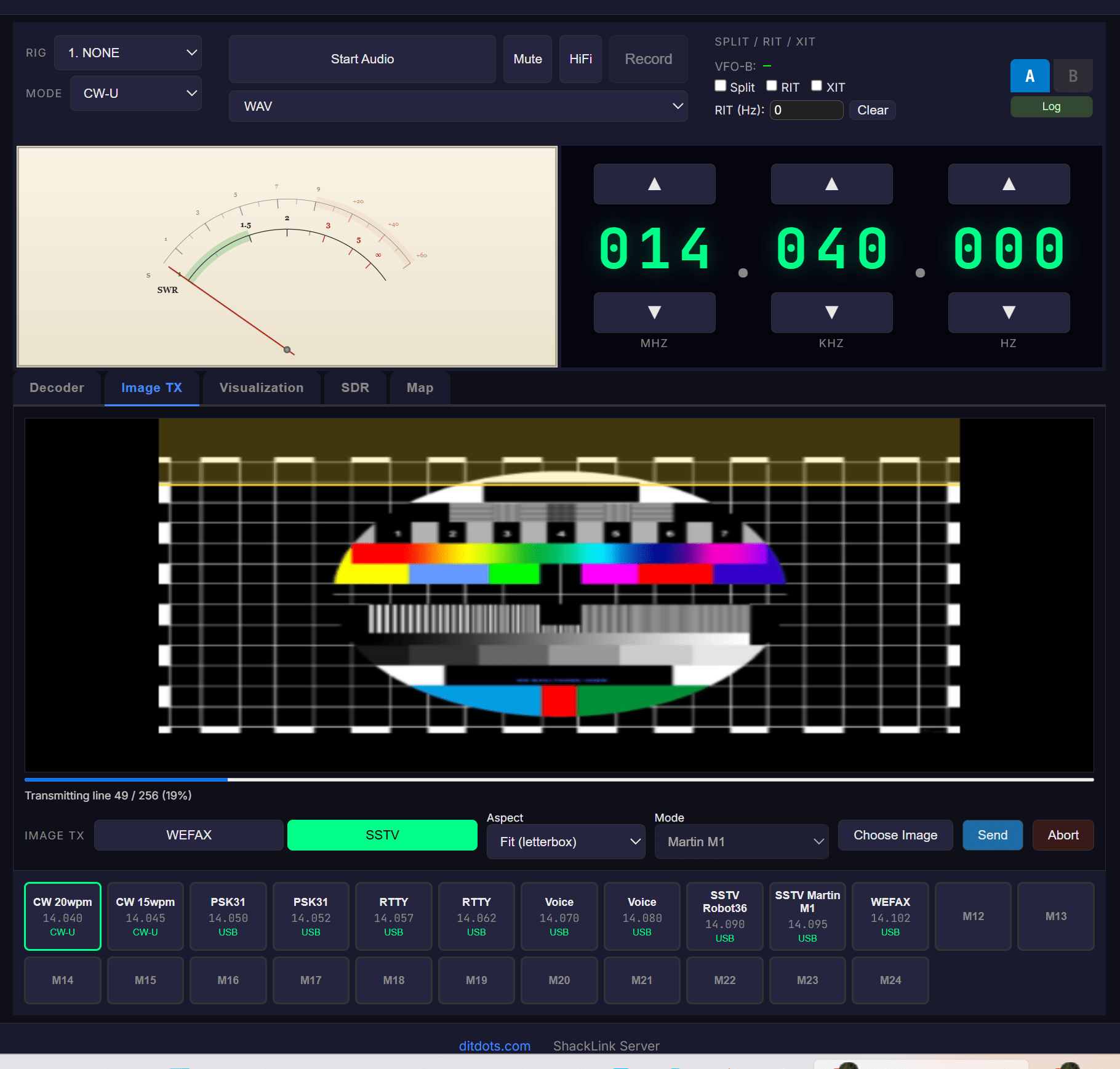
The Image TX tab — stage a picture, pick SSTV / WEFAX, and watch the live send-progress bar
📜 Slot Decoders Tab
Every per-slot decoder at once
Each of the server’s SDR slots can run its own decoder, on its own audio, independently of the Decoder tab. The Slot Decoders tab shows what all of them are hearing: a lane per slot for the character and line modes (name, decoder mode, listen frequency, running transcript) and a table of FT8/FT4 records. Turn a slot’s decoder on with the Decode picker on the SDR tab; this tab is a view.
Three details that are deliberate rather than missing: a lane retires dimmed when its decoder stops, so the transcript stays attributable; a blank SNR on an FT8/FT4 row means the slot’s gain moved under that cycle, not that the value is unknown-and-zero; and there is no click-to-tune, because a per-slot decode is keyed by its slot and none of the modes captures an on-air frequency to tune to.
🗺️ Propagation Map
The Map tab shows a live greyline propagation map — a world map with the day/night terminator drawn across it. The greyline (the band of twilight sweeping the globe) is where long-haul HF propagation is often at its best, so it’s a quick visual cue for when and where the bands are likely to open. Like every other tab, the radio control card stays pinned above it. It is the same map the server and the desktop client show, served by the server.
New 2026-10: a Flat | Globe switch in the Layers panel turns it into a 3-D globe you can spin and zoom (loaded only the first time you pick it), with new layers: a MUF map from the server’s propagation model, greyline DX with open and close times, ionosonde readings, D-region absorption, spot-density columns and hop paths (globe only), satellites with their next passes, the Moon and EME windows, and city lights. Times can be UTC or local and distances km or miles. The Worked DXCC layer needs a logbook, which the browser does not have, and says so.
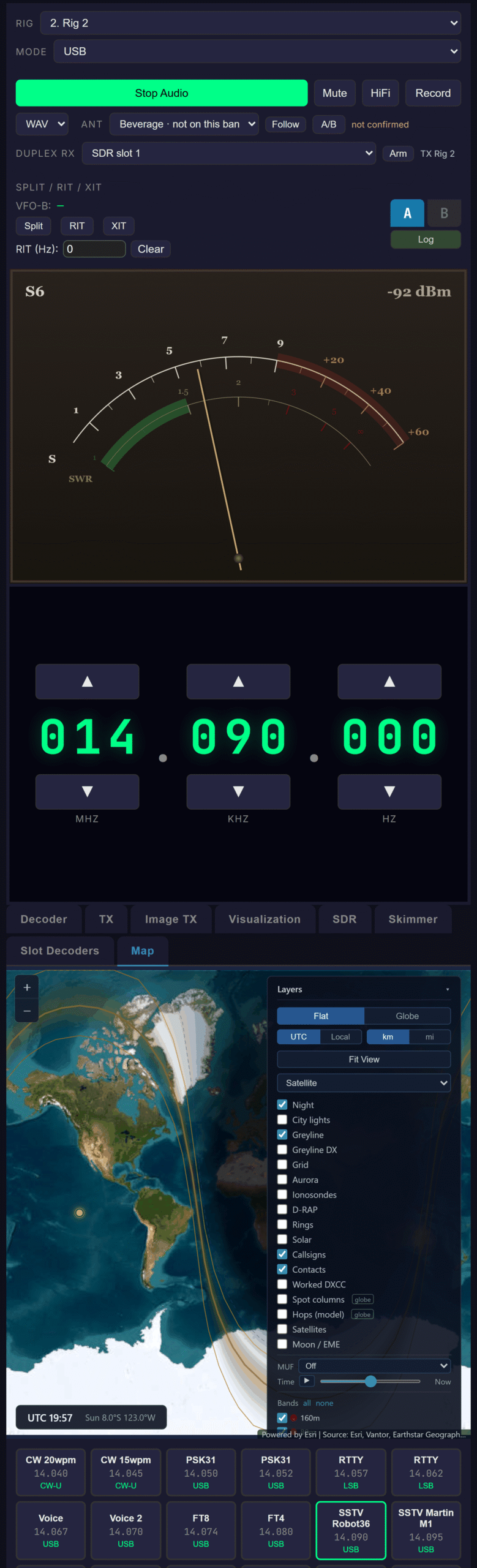
The Map tab — greyline propagation map with the day/night terminator across the world
🌐 Browser Compatibility
| Browser | Version | Status |
|---|---|---|
| Chrome | 66+ | ✓ Full support |
| Firefox | 76+ | ✓ Full support |
| Safari | 14.1+ | ✓ Full support |
| Edge | 79+ | ✓ Full support |
| Chrome Android | 66+ | ✓ Full support |
| Safari iOS | 14.5+ | ✓ Full support |
🔧 Troubleshooting
Cannot Connect
- Verify server IP address and port (8084)
- Ensure ShackLink Server is running (HTTP status indicator should be green)
- Check firewall allows port 8084 — Station Settings → Server → Configure Firewall on the server creates the rules automatically
- If you get a brief “Connected” then immediate “Disconnected”: the server has authentication enabled and your secret is missing or wrong. Open Station Settings → Security on the server, copy the secret, and paste it into the Auth secret field on the connect form.
No Audio
- Click somewhere on the page first (browser autoplay policy)
- Check browser allows audio for this site
- Ensure audio streaming is enabled on the server
Audio Glitches
- Use wired network instead of WiFi
- Close other browser tabs using audio
- Serve over HTTPS for AudioWorklet support