Video editing shouldn’t require a learning curve. Trim, cut, crop, resize, add captions, import subtitles, and record your screen — each as a single, obvious action. Built for anyone who just wants to get a quick edit done.
Simple by Design
Every operation is atomic: pick an action, configure it visually, press Apply. No timeline layers, no complex project files, no confusion.
Trim & Cut
Drag green handles to keep a section, or red handles to remove one. Frame-accurate re-encoding so cuts land exactly where you want them.
Crop & Resize
Draw a crop rectangle directly on the preview with corner handles, or pick from resolution presets (1080p, 720p, 480p, half size) with one click.
Captions & Subtitles
Click to place text on the video. Choose from 24 text colors, 20 background colors (transparent, semi-transparent, solid), 7 fonts, and adjustable size. Set timing with blue handles. Or import an SRT subtitle file.
Screen Recording
Capture any window on your screen with one click. H.264 at 30 or 60 fps with system audio. The recording loads into the editor automatically.
Frame-by-Frame Preview
No media player needed. Every scrub, seek, and frame step extracts the exact frame from ffmpeg and displays it instantly. What you see is what you get.
Filmstrip Navigation
A scrollable strip of ~4 thumbnails per second appears for every video. Click any thumbnail to jump to that moment. Syncs with the playhead and handles.
Operation Queue
Queue multiple operations (trim + resize + caption) and apply them all with one click. Each runs in sequence automatically.
Multiple Export Formats
Save as MP4, MOV, WebM, or GIF. GIF exports are auto-scaled and optimized. Your last settings are remembered between sessions.
Undo / Redo
Every Apply creates a checkpoint. Step back and forth freely. Drag and drop files to open, or use keyboard shortcuts for everything.
Screenshots
A clean, dark interface designed so a kid can use it

Main Editor
Video preview, filmstrip, timeline, and large action buttons

Trim Operation
Green handles on the timeline to select what to keep

Cut Operation
Red handles to select what to remove — the rest is joined together

Crop with Preview Overlay
Draggable rectangle with corner handles directly on the video

Resize Presets
One-click presets or custom dimensions with aspect ratio lock
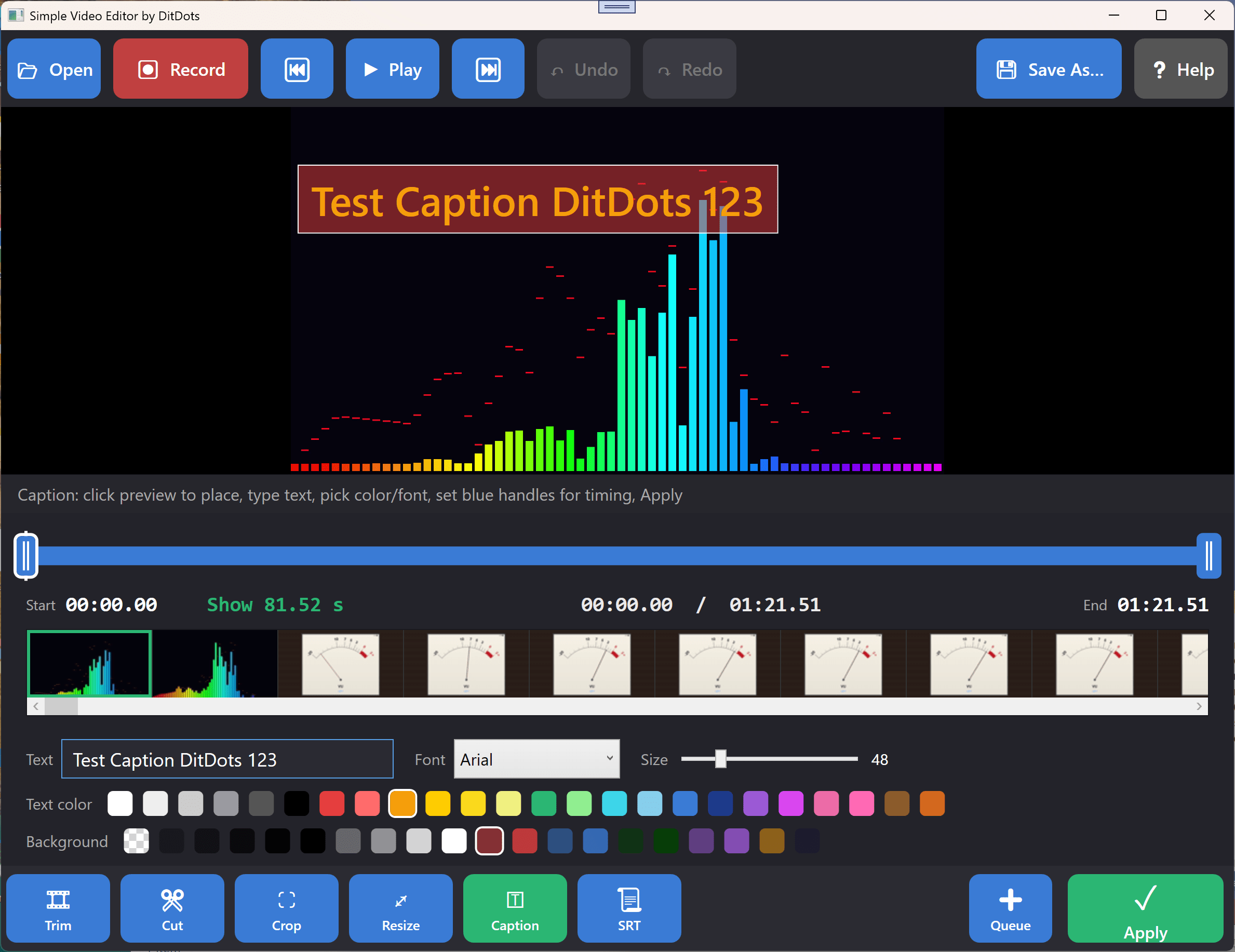
Caption Editor
24 text colors, 20 background colors, 7 fonts, timing with blue handles

Screen Recording
Pick a window, set FPS and quality, click Record
Keyboard Shortcuts
Fast editing without touching the mouse
Navigation
| Key | Action |
|---|---|
| Space | Play / Pause |
| Left / Right | Previous / Next frame |
| Mouse Wheel | Step frames (timeline) or thumbnails (filmstrip) |
| F1 | Open help |
Editing
| Key | Action |
|---|---|
| Ctrl+Z | Undo |
| Ctrl+Y | Redo |
| Ctrl+S | Save As |
| Escape | Cancel operation / clear queue |
| Drag & Drop | Open video or SRT file |
How It Works
No project files. No timeline tracks. Just three steps.
Pick an Action
Click Trim, Cut, Crop, Resize, Caption, or SRT from the bottom bar. Each has its own visual controls.
Configure Visually
Drag handles, draw rectangles, type text, or pick presets. See the effect on the frame before committing.
Press Apply
ffmpeg renders the edit with a real-time progress bar. The result loads automatically. Undo if you don’t like it.
Requirements
Runs on any modern Windows PC
Windows 10 / 11
64-bit, version 1904 or later. Screen recording requires Windows 10 build 19041+.
.NET 8 Desktop Runtime
The installer prompts if not already installed. ~50 MB one-time download.
ffmpeg (bundled)
Included in the installer. Powers all video processing, frame extraction, and filmstrip generation.
~200 MB disk space
Application (~10 MB) + ffmpeg (~100 MB) + working space for temp files during editing.