
A PDF workbench for Windows
DitDots PDF
Combine medical records, police reports, bills and phone photos into one file, pick and reorder the pages, redact for real, stamp Bates numbers, straighten a receipt photographed at an angle, make scans searchable and rescue damaged PDFs. Built for touch as much as for a mouse, and nothing ever leaves your PC.
No account, no upload, no subscription to a website. Windows 10 and 11, on Intel/AMD and on ARM laptops.
▶️ See it in a minute and a half
One case, start to finish: open the records, pick the pages, redact, stamp and save.
 1:27
A walkthrough of DitDots PDF
A fictional personal-injury case: three PDFs open and the damaged one is repaired, pages from each are combined and one is rotated, the SSN and date of birth are redacted by hand and then found on every page, Bates numbers go on, the preview shows the covered text is gone, and the file is saved searchable. Then a watched folder and the dark theme.
Or the one-minute trailer →Built for one desk
DitDots PDF started as a tool for one person: a case manager at a personal-injury law firm, working on a touchscreen laptop. Her day is PDFs. Hospital records arrive as three hundred scanned pages, the police report as a fax of a fax, the bills as a dozen separate files, and all of it has to become one clean, numbered production for an insurer or for opposing counsel, with the Social Security numbers and dates of birth taken out.
The tools to hand were either a subscription, a website that wanted the client’s medical records uploaded to it, or a “redaction” that drew a black box over the text and left the text underneath, where anyone could copy it back out. None of those is acceptable for client files.
So this is one window with three columns: the documents on the left, their pages in the middle, and the file being built on the right. Big thumbnails, buttons a finger can hit, undo for everything, and a preview that is the real output, not an approximation of it.
It is written honestly about what it knows. What has been checked by automated tests against real files says so, and what has not been checked yet says that too, further down this page.
📋 One workbench
Documents, pages, output, left to right. Tick a document to see its pages, tap the pages you want, and add them to the file you are building.
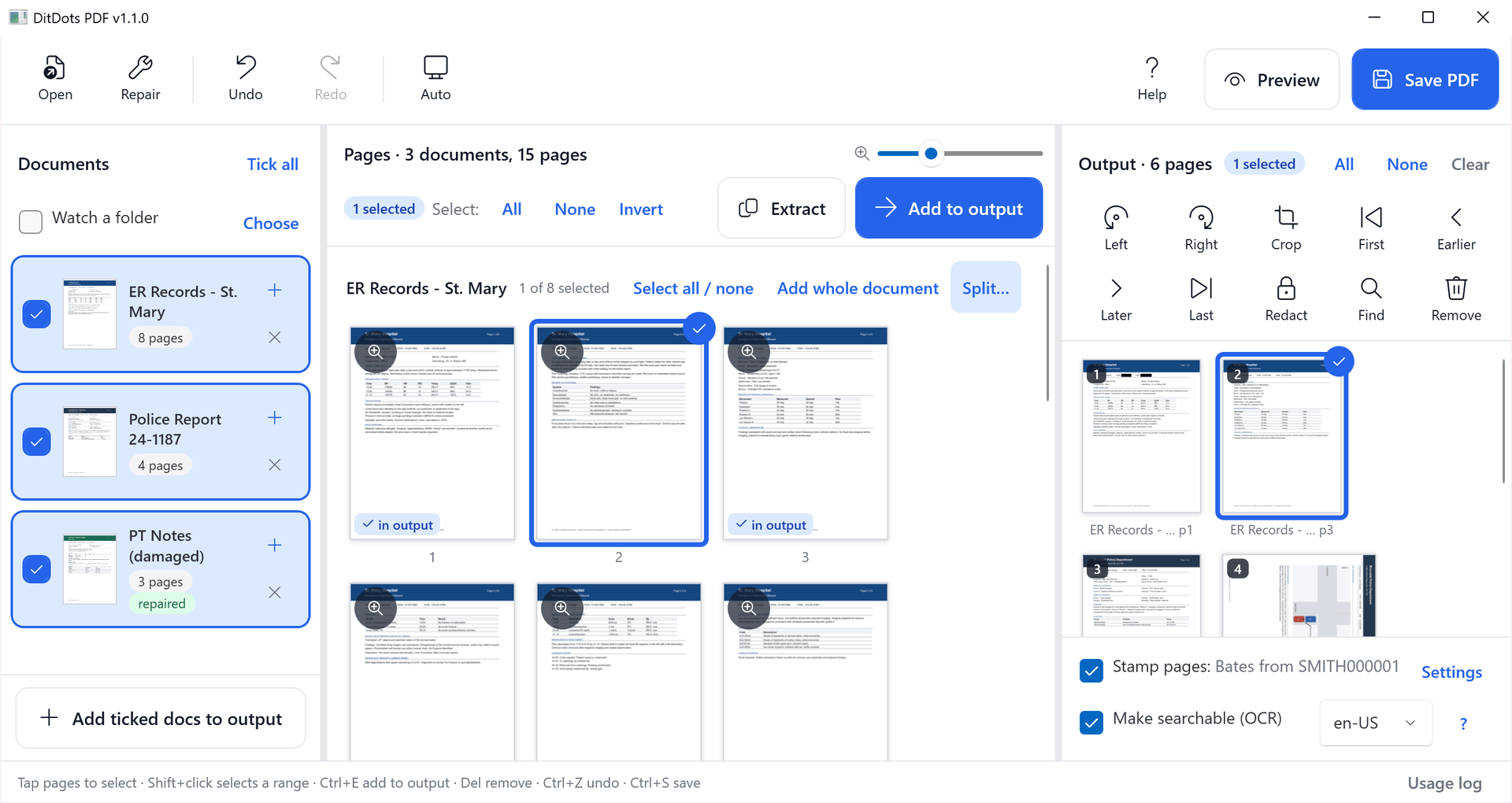
The workbench: three documents open (one of them repaired on the way in), the pages of the hospital records in the middle with the ones already used marked in output, and the file being built on the right, with Bates numbering and OCR switched on for the save.

Dark theme: Auto follows Windows, or choose Light or Dark from the toolbar.

Preview: the real output file, built and shown page by page exactly as it will be saved: redactions burned in, Bates number in the corner.
🔢 The shape of it
What it is, in a few numbers.
⚙️ What it does
The everyday jobs of a records desk, without a website in the middle.
📑 Combine, pick and reorder
Open or drop any number of PDFs and pictures. Tap pages to select them, Shift+click for a range, double-tap to look closer, then Add to output or drag them across. In the output, rotate, move to the start or the end, nudge earlier or later, or remove.
Pages without redactions are copied losslessly: text, vector drawings and links stay exactly as they were.
📷 Photos and scans as pages
JPEG, PNG, TIFF, BMP and GIF open like PDFs (HEIC, WebP and AVIF too, with the free Windows extensions). Phone photos come in upright, a multi-page TIFF fax opens as one document, and JPEGs go into the PDF without being compressed again.
Drop pictures onto the output to put them exactly where you let go, or pick a stack in File Explorer and choose Open with: they arrive together, in name order.
📐 Crop and straighten
Crop and rotate any page, seeing it large. For a receipt or a page photographed at an angle, put the four corners on the paper: it becomes a flat, upright page with its real proportions, previewed as you drag.
⬛ Redaction that is real
Drag boxes over anything that must go. When the file is saved, a redacted page is rebuilt from an image with the boxes painted in, so the covered text and graphics do not exist in the saved file. Nothing to select, search or copy back out.
🔎 Find & redact
Finds Social Security numbers, labelled dates of birth, account and card numbers, and any words you type, in the text layer or, on scans, through OCR. You review the list and untick anything that should stay before a single box is drawn.
An option keeps the last four digits and the birth year visible, as many productions require.
🔢 Bates numbers and page stamps
Prefix, next number, digits, extra text and position, or a plain “Page X of Y”. Stamps are printed upright however a page is rotated, and the next Bates number carries over, so the next production picks up where the last one stopped.
🔍 Make scans searchable
Adds an invisible text layer to scanned pages and photos, so the saved file can be searched and copied from. Redacted pages are recognized from the already blacked-out image, so redacted words can never come back through OCR.
🔧 Repair damaged files
A PDF that other programs refuse is repaired as it opens, and marked repaired. The Repair button saves a repaired copy on its own.
✂️ Split
Save every N pages, every page on its own, a new file at each selected page, or by
ranges like 1-3, 4-10, 11-. The original is not changed.
🔑 Password-protected PDFs
Asks for the password and opens a decrypted working copy, which is deleted when PDF Desk closes. The password is used only to open the file on this PC.
📂 Watch a folder
Point DitDots PDF at the folder your scanner or email rules save to. New PDFs and pictures open on their own once they have finished arriving, and leave the list when they leave the folder. Pages already in the output stay there and still save.
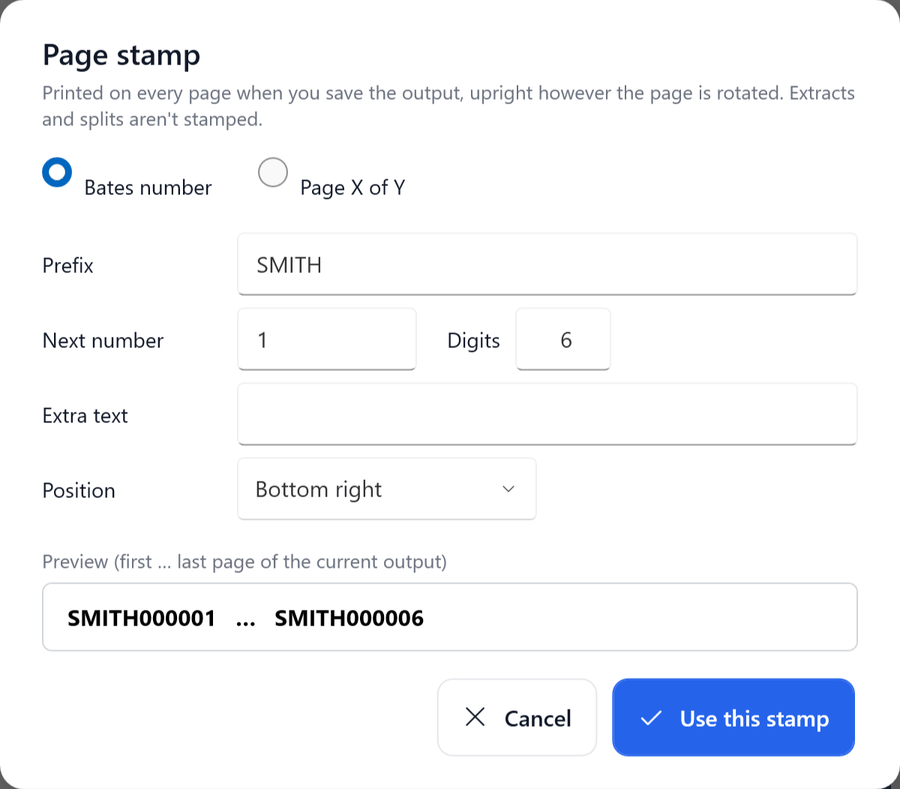
Page stamp: Bates numbers from SMITH000001, previewed across the current output before anything is saved.

Repaired on open: a file with a broken structure opens anyway, rebuilt with its content preserved, and says so.
📷 Photos, receipts and scans
Clients send pictures: of receipts, of letters, of an insurance card. They go into the same file as everything else.

Pictures are documents too: a phone photo of a receipt and a scanned insurance card, opened next to the hospital records. The photo was dropped between the record’s first two pages.

Straighten: a receipt shot at an angle. Put each corner on the paper and the result on the right becomes a flat page, with the receipt’s real proportions worked out from the camera.
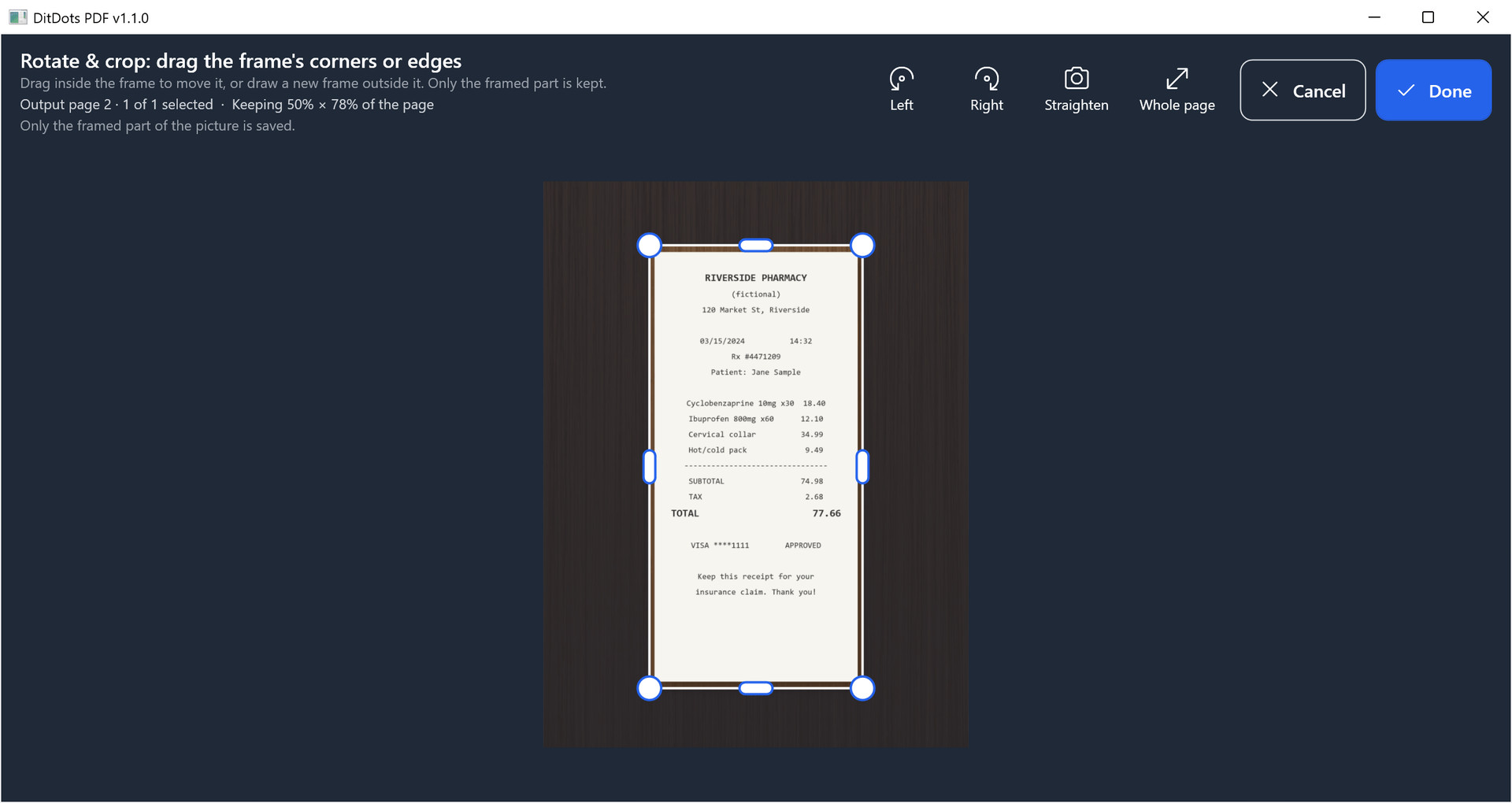
Crop and rotate: drag the frame’s corners or edges, with handles big enough for a finger. Only the framed part is saved.
📍 Where a photo was taken stays out of the file
Phones record hidden details in every photo: often the place, always the time and the device. DitDots PDF uses only the picture’s orientation and the lens data, to turn it upright and straighten it, and leaves the rest out of the PDF it saves. The picture itself goes in untouched.
⬛ How redaction works
A black rectangle over text is not a redaction. Here is what PDF Desk does instead.

Draw the boxes: drag over anything that must be hidden; undo a box or clear them all. The header says plainly what will happen on save.

Or let it find them: twelve items on six pages, every one listed with its page so you can untick anything that should stay.
🔒 What happens on save
A page with redactions is rendered to an image at 200 dpi, the boxes are painted black into that image, and only the image goes into the new file. The original text, fonts and drawings of that page are not copied at all.
With OCR on, the page is made searchable again from that blacked-out image, so the words that were covered are not in the new text layer either. Pages without redactions are copied untouched.
⚠️ Always look before you send
Find & redact finds what it is designed to find, and only what it can read. Use Preview and check every page before a file leaves the office. The redaction is real; the choice of what to cover is still yours.
✅ What is checked, and what is not
Every build runs an automated test suite against real PDF files. This is what it covers, and what still needs a person and a real machine.
| Claim | How it is checked | Status |
|---|---|---|
| Redacted text is gone from the saved file | The test redacts a page, saves, then reads the text back out of the new file and looks for the covered words | Tested |
| OCR restores only the uncovered text | Same file: the visible words are searchable again, the covered ones are not | Tested |
| Find & redact catches SSNs and dates of birth | On normal and rotated pages, and on scans through OCR; ordinary dates are left alone; the keep-last-four option leaves exactly those digits | Tested |
| Bates stamps are upright | Every combination of source rotation and output rotation | Tested |
| Merging is lossless | Pages are selected, reordered and rotated, and the text of each page is compared | Tested |
| Damaged files open | A file with a broken cross-reference table, and a truncated scan rescued from its embedded images | Tested |
| Password-protected files | Open only with the right password | Tested |
| Photos come in upright and unchanged | Every camera orientation, mirrored ones included; a JPEG’s compressed picture goes into the PDF byte for byte; multi-page TIFFs and faxes with tall pixels get their real page size | Tested |
| Camera details stay out | A photo carrying the device and the time it was taken: neither is in the PDF made from it, nor in the saved file | Tested |
| Straightened pages keep their real proportions | Rectangles photographed by a simulated phone camera, tilted up to 50°: within 3% with the lens data phones record, within 5% without it | Tested |
| Cropping a PDF page keeps its text | The cropped page keeps its text and links, Bates stamps land inside the crop, and OCR reads only what stays visible; on a photo, the cut-off part is gone from the file | Tested |
| Windows 11 | The whole workflow (opening PDFs and photos, repair, unlocking, find & redact, OCR, Bates stamps, crop and straighten, preview and save) runs on Windows 11, build 26300, driven by the script that takes this page’s screenshots | Tested |
| Spanish OCR | Needs the Spanish recognizer installed in Windows; the development PC only has English so far | Not yet tested |
| Crop and straighten with a finger | The script drags the handles through the same code a mouse or a finger uses, but not yet on a real touchscreen | Not yet tested |
| HEIC (iPhone) photos | Need Microsoft’s free HEIF Image Extensions; the message when they are missing is tested, real HEIC files not yet | Not yet tested |
| ARM64 laptops | The ARM64 build is made and packaged with every release, but has not yet run on ARM hardware | Not yet tested |
🔒 Your documents stay yours
Client files are the reason this exists, so the rules are simple.
No network
DitDots PDF contains no code that talks to the internet. Opening, redacting, OCR, repair and saving all happen on your PC.
No account
Nothing to sign in to, no licence server, no telemetry. It works the same with the network cable unplugged.
A log with no names
A small local usage log records which features were used and page counts, so problems can be found. Never file names, never document text.
The full policy is on the DitDots PDF privacy page.
🖥️ What you need
Windows
- ✓ Windows 10 version 2004 or later, or Windows 11
- ✓ Intel/AMD (x64) or ARM64
- ✓ Nothing else to install (for iPhone HEIC photos: the free HEIF Image Extensions)
Input
- ✓ Touchscreen, mouse or both
- ✓ Keyboard shortcuts for everything common
- ✓ Drag and drop, or Open with, from File Explorer
OCR languages
- ✓ Uses the languages installed in Windows
- ✓ English is usually there already
- ✓ Add Spanish in Settings › Time & Language
▶️ A production in five steps
Open the records
Drop the PDFs and photos on the window or tap Open. Damaged files are repaired on the way in, locked ones ask for their password.
Pick the pages
Tick a document to see its pages, tap the ones you need, and Add to output. Pages already in the output are marked, so you can see at a glance what is in.
Arrange and redact
Rotate, reorder, crop, straighten the photographed receipts, then Find & redact the SSNs and dates of birth, or draw boxes by hand. Every step can be undone.
Stamp and preview
Switch on Bates numbering, then Preview: it builds the real file and shows every page as it will be sent.
Save a new PDF
Save writes a new file, searchable if OCR is on. The source files are never modified.
🧱 Built on
DitDots PDF renders pages with PDFium, the PDF engine inside Chrome, writes
files with PDFsharp, and reads text with the OCR built into Windows. Their
licence notices ship with the application, in THIRD-PARTY-NOTICES.txt beside
it. The user guide is inside too: press F1.
📋 DitDots PDF
Built for a records desk that handles other people’s worst days: their injuries, their bills, their numbers. It keeps those files on the PC they belong on, and when something is redacted, it is gone.
Windows 10 or 11, x64 or ARM64. No account, no upload.
Click anywhere or press Esc to close